
Experience Center
I. Page Overview
The Experience Center belongs to the Model menu in the console left sidebar. It is an online model debugging, parameter testing, and conversation preview tool page for all team members. Without creating an API key or deploying an agent, you can directly select available large models on the platform, customize full generation parameters, configure dedicated system prompts, and test model output effects in real time.
It supports validating prompt quality in advance, debugging how parameters affect response style, and reusing mature configurations directly in the agent creation workflow after testing—greatly reducing agent debugging costs. Regular operators, administrators, and team owners can all access this page normally.
The page is divided into three main areas: the left parameter configuration panel, the center model preset description display area, and the bottom conversation input interaction area.
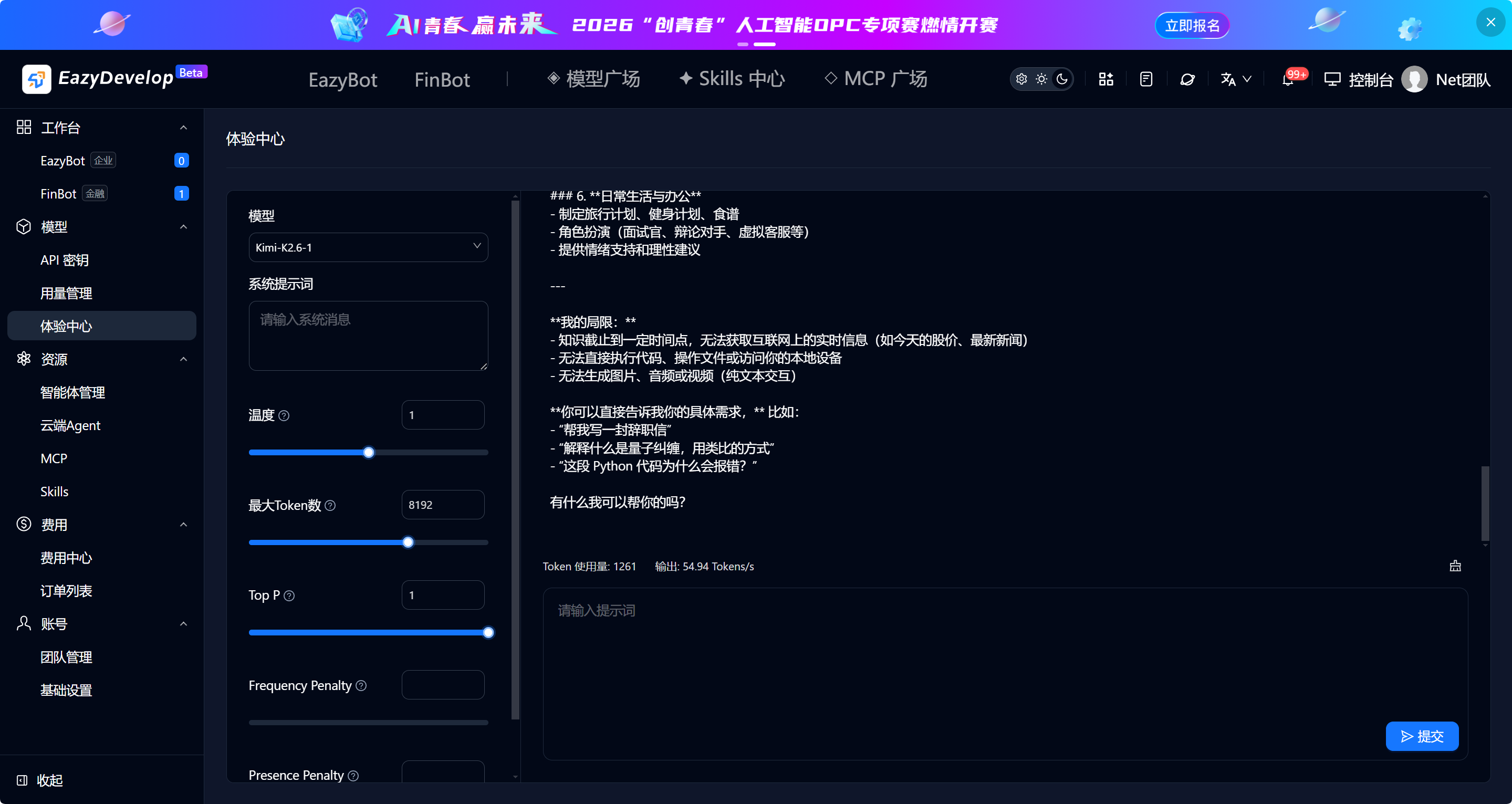
II. Left Parameter Configuration Panel
The left panel centrally manages all model and generation rule configuration items. Each parameter has a question mark tooltip; hover to view parameter definitions.
2.1 Model Selection
The dropdown shows all available online large models on the platform (example: Kimi-K2.6-1). Switching resets all page configuration and conversation context, using the corresponding model's underlying capabilities for conversation generation.
2.2 System Prompt
Multi-line text input for setting the model's base identity, positioning, response rules, output format, and other global instructions. Applies to all conversations in the current session.
- Use case: Write agent underlying prompts in advance and validate response effects online.
- Operation: Enter text directly, supporting line breaks and Markdown format. Switching models does not auto-clear; manually clear or overwrite.
2.3 Temperature
Slider + numeric input linked control, range 0~1, default 1.
- Lower values: More stable, rigorous, lower repetition output—suitable for data organization, professional Q&A, code generation.
- Higher values: More creative, more random output—suitable for copywriting, brainstorming, creative writing.
- Adjust by dragging the slider or directly editing the input number.
2.4 Max Tokens
Limits the maximum token count for a single model response output, default example 8192.
- Larger values allow longer single responses—suitable for long reports and complete document generation.
- If conversation content exceeds this limit, the response is truncated. Adjust up or down based on use case.
2.5 Top P
Nucleus sampling threshold, range 0~1, default 1.
- Controls the model's word selection range.
- Higher values allow more low-probability tokens in generation, enhancing content diversity.
- Lower values use only high-probability tokens for more uniform responses.
2.6 Frequency Penalty
Suppresses repeated words and sentence patterns in model output. Higher values make the model avoid reusing the same vocabulary—suitable for long-form writing to reduce redundancy.
2.7 Presence Penalty
Encourages the model to explore new topics and introduce unmentioned concepts. Higher values make the model more likely to go beyond existing conversation content and produce new angles and information.
III. Center Model Description Display Area
- Basic introduction: Shows the current selected model's capability scope, divided into three usage scenarios—tool assistance, information processing & analysis, daily life & decision-making—clearly showing what the model can do.
- Limitation notes: Marks model data cutoff date, operational capability limits, and professional scenario risk reminders (for major decisions in medical / legal / financial contexts, consult qualified human professionals).
- Real-time runtime data: After conversation ends, automatically displays token usage and output speed (Tokens/s) for this conversation, quantifying resource consumption.
- Conversation history container: All Q&A interaction records are fully retained in this area. Scroll up and down to view complete conversation context. Page refresh or model switch clears all conversation history.
IV. Bottom Conversation Interaction Area
- Prompt input box: Enter user questions and requirement instructions. Supports multi-line long text paste.
- Submit button: Blue Submit button. Click to generate a response according to the model, parameters, and system prompt configured on the left.
Interaction rules:
- Conversation context memory: The model reads all historical Q&A on the current page and responds coherently with context.
V. Core Use Cases and Steps
Scenario 1: Debug agent system prompts in advance
- Go to Model → Experience Center.
- Select the target deployment model from the dropdown.
- Paste prepared agent underlying instructions in the System Prompt box.
- Adjust temperature, max tokens, and other generation parameters.
- Enter business test questions at the bottom and click Submit to validate output.
- Repeatedly modify prompts and parameters until output meets business expectations, then copy the prompt to create an agent.
Scenario 2: Test how different parameters affect response style
- Fix the same system prompt and question content.
- Adjust temperature, Top P, and penalty parameters separately.
- Submit the same question multiple times and compare response rigor, creativity, and repetition rate.
- Record the optimal parameter combination for direct reuse when configuring agents.
Scenario 3: Quickly try newly launched model capabilities
- Switch to a newly launched model in the model dropdown.
- No key configuration needed—directly enter business requirements for conversation.
- Use the center area model introduction to quickly understand applicable scenarios and capability boundaries.
VI. Role Permission Notes
- Team owner / Administrator: No functional restrictions. Can freely switch all models, modify all parameters, and fully view conversation token consumption.
- Regular operator: Full access to all Experience Center features for model debugging and prompt testing. Cannot navigate to billing or team management pages. Credits consumption from conversations is recorded under their assigned key usage.
VII. General Page Rules
- Data cache rules: Switching models or refreshing the page clears conversation history, but left panel parameter configuration is temporarily retained.
- Billing rules: All Experience Center conversation calls also consume team plan Credits quota. Consumption details can be searched in Usage Management.
- Data security rules: Page conversation content is temporarily stored in the current session only. After closing the page, it is automatically cleared and not retained in long-term platform logs (only usage quota statistics are permanently saved).
- Resource deduction: Each conversation submission consumes team plan Credits quota. Consumption records sync to the Usage Management page.
- Token limit rules: Max tokens has a platform upper limit. Values exceeding the threshold are automatically capped to the platform maximum.