
MCP
MCP Management is located under the Resources category in the console left navigation bar. It uniformly manages all team MCP (Model Context Protocol) service resources. MCP is a standardized capability extension protocol for agents, enabling EazyBot / FinBot agents to mount external tools, data interfaces, and third-party services—implementing document retrieval, stock queries, Feishu integration, web search, mind map generation, and other extended capabilities.
This page supports two resource acquisition methods: one-click import of mature services from the official MCP Square, and manual custom creation of dedicated MCP services. All created MCP resources can be bound to agents for invocation in conversation flows.
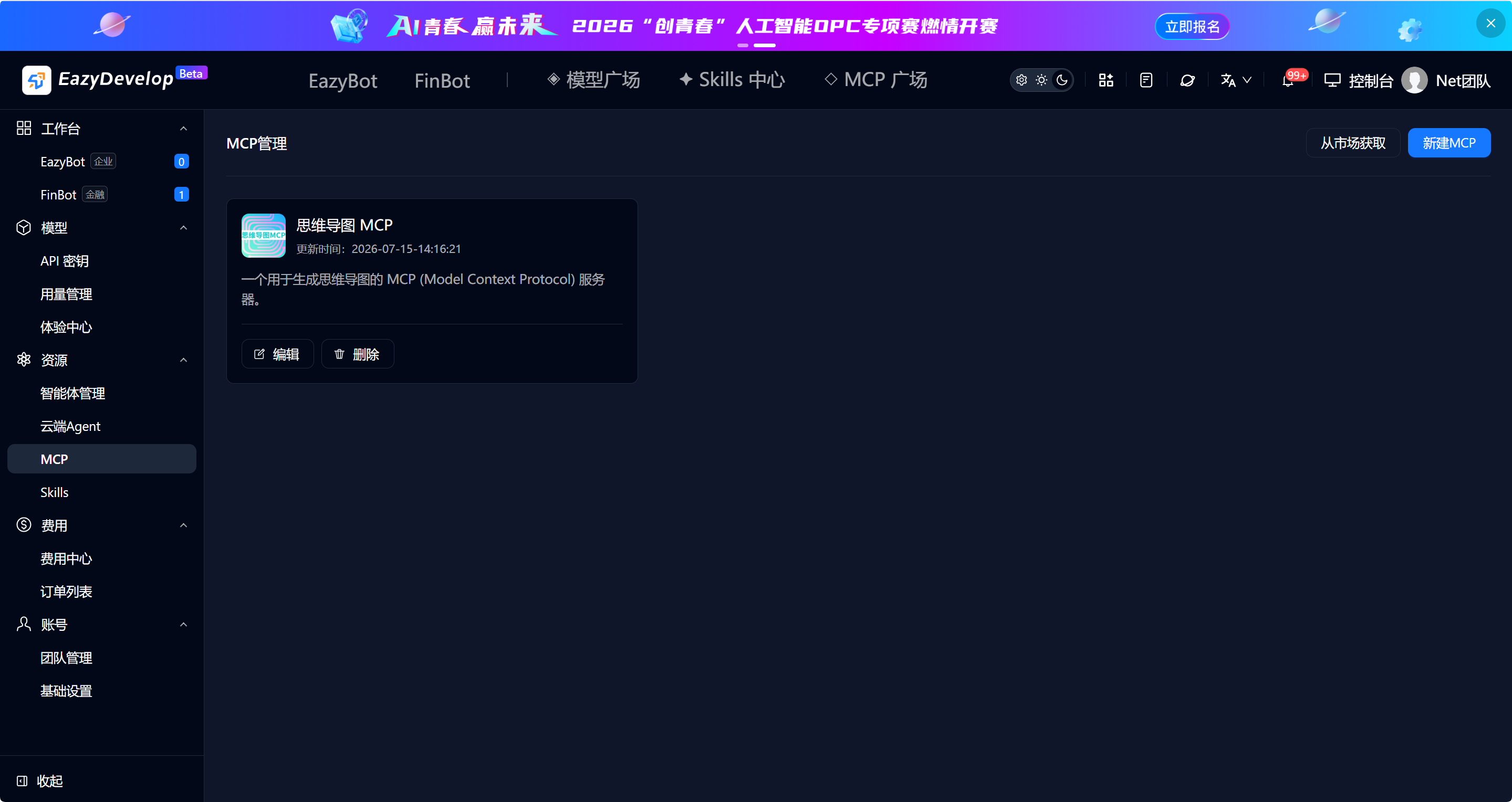
Acquire MCP Resources
Method 1: Acquire from Market
Click Acquire from Market in the top-right corner of the list page, or MCP Square in the top navigation bar, to enter the official pre-built MCP service market.
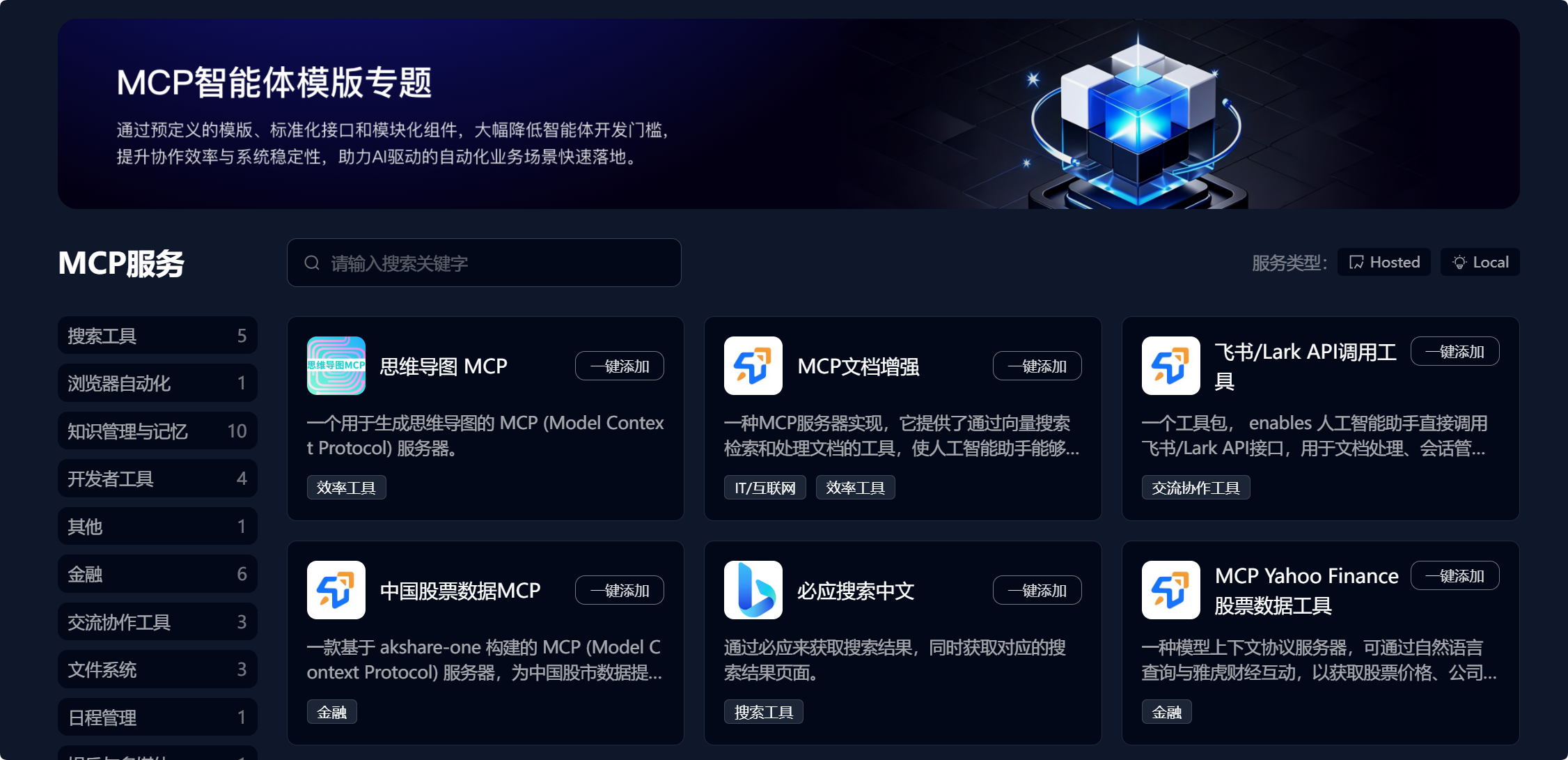
- In MCP Square, find the needed service through categories / search (e.g., mind map MCP, China stock data MCP, Bing search Chinese, etc.).
- Click the One-Click Add button in the top-right corner of the card.
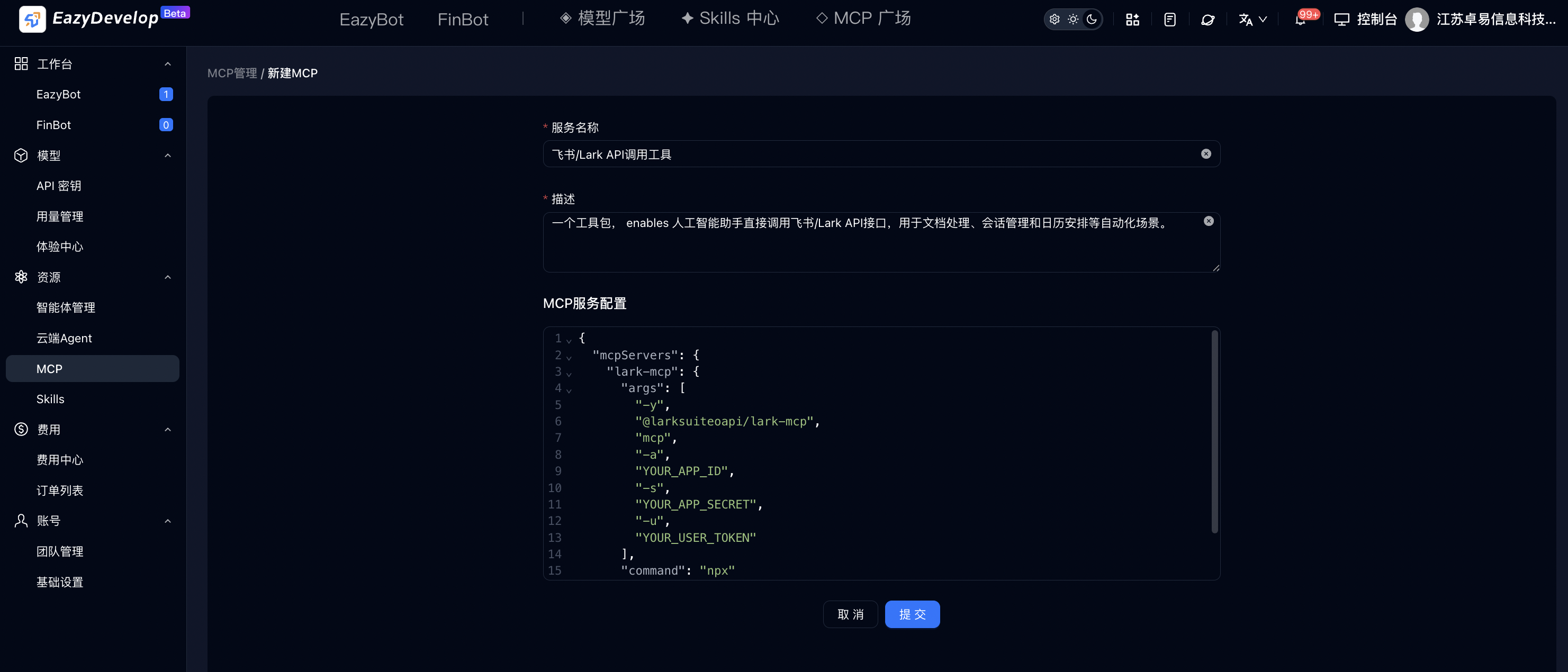
- System automatically navigates to MCP Management / Create MCP page, auto-filling service name, description, and complete JSON configuration code. Configure privacy information such as SECRET and TOKEN as required.
- After verifying information, click Submit at the bottom to complete import.
- After successful submission, the MCP automatically appears in the MCP management list. Go to the agent configuration page to bind and use.
Method 2: Create Custom
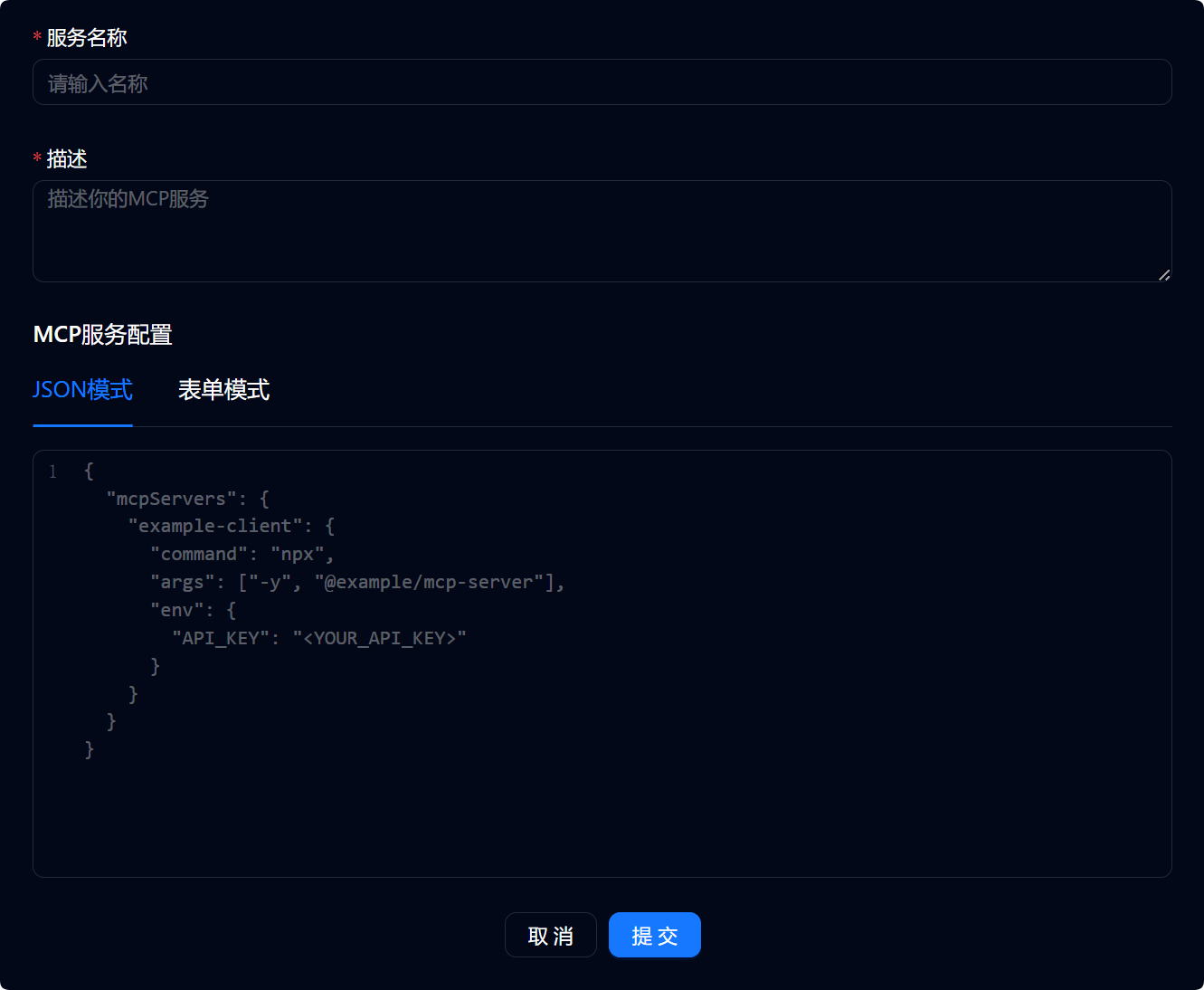
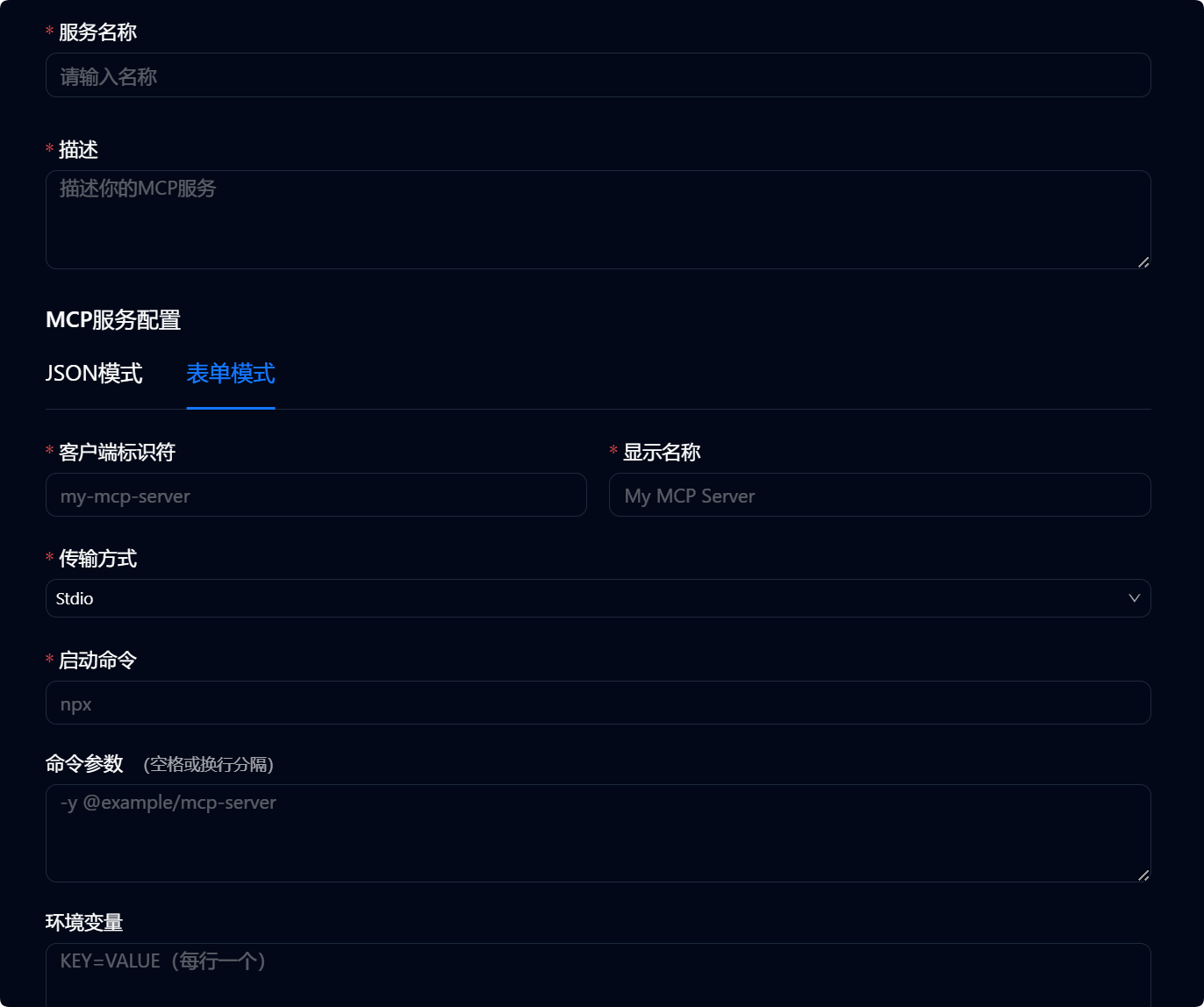
Click the blue Create MCP button in the top-right corner of the MCP management list page to open the creation form. The page supports JSON Mode and Form Mode configuration switching, defaulting to JSON edit mode.
Basic Required Information (Shared by both modes)
- Service name (required): Custom MCP identifier name for list display and agent binding selection.
- Description (required): Fill in the MCP service's functionality and use cases for team member identification.
Mode 1: JSON Mode (Code editing)
- Built-in standard JSON editor with basic template code, including
mcpServerstop-level structure. Supports configuring service command, startup parameters, and environment variables. - Configuration field descriptions:
command: Base command to start the MCP service (e.g.,npx).args: Command execution parameters, fill in the corresponding MCP service package address.env: Environment variable configuration area for third-party API keys, account credentials (e.g., API_KEY).
- Operation rules: Manually write / paste complete JSON configuration. System automatically validates JSON syntax; cannot submit on format errors.
Mode 2: Form Mode (Visual input)
Click Form Mode at the top of the page to switch to visual configuration interface. No code writing required—complete configuration through input fields and dropdowns:
- Transport method selection; page configuration items auto-switch:
- Streamable HTTP: Shows service URL input field for MCP service remote access address.
- Stdio: Shows startup command, startup parameters, and batch environment variable configuration items.
- After all form configuration items are filled, system automatically converts to standard JSON configuration.
Submit Creation
- After basic name, description, and service configuration are all filled, click the blue Submit button at the bottom.
- Validation rules: Submission blocked if name or description is empty; JSON mode with invalid syntax shows dialog prompting correction.
- After successful submission, custom MCP is automatically stored in the MCP management list, supporting subsequent edit and agent binding.
Edit MCP
Click the Edit button on the corresponding resource card in the MCP list to navigate to an edit form identical to the creation page:
- Page auto-fills the MCP's original name, description, and JSON / form configuration.
- Supports modifying all basic information and service configuration. Switch JSON / form mode to adjust underlying parameters.
- Save rules: Click Submit after modification for real-time configuration update. Agents bound to this MCP automatically load the latest service configuration without rebinding.
Delete MCP
- Click the Delete button on the target card in the MCP list.
- Dialog validates dependencies, showing a list of all agent names currently bound to this MCP.
- Confirm deletion: After confirmation, the MCP resource is permanently cleared and cannot be recovered. All agents that bound this MCP are automatically unbound; the corresponding tool capabilities can no longer be invoked in conversations.
- Cancel deletion: Close dialog, MCP resource remains unchanged.
Constraints
- Resource isolation: Each team's MCP resources are fully isolated; cannot view or reuse across teams.
- Data cache: MCP configuration one-click imported from the market is a static snapshot. After square template updates, existing imported MCP does not auto-sync new versions; re-one-click add is required.
- Permission isolation: Regular operators can only select existing MCP to bind agents; cannot add, modify, or delete any MCP services.
- Configuration security: API keys and credential-type environment variables in MCP configuration are visible only to team administrators. Regular operators cannot view underlying configuration details when editing agents.
- No standalone billing: MCP resources themselves do not consume plan Credits quota. Deduction occurs only when agents invoke MCP and initiate model conversations.