
OpenCode Integration Guide
OpenCode is a CLI + TUI AI programming agent tool that runs in the terminal, also providing IDE plugin integration, capable of completing rapid code generation, debugging, project analysis, file operations, and other tasks.
1. Get API Key
- Refer to Model Activation Help Documentation
2. Install OpenCode
After installing OpenCode, you can directly use the
opencodecommand in the terminal to start the interactive interface.
Prerequisites: Node.js 18.0 or higher
Step 1: Install OpenCode
npm install -g opencode-aiStep 2: Verify Installation
opencode -v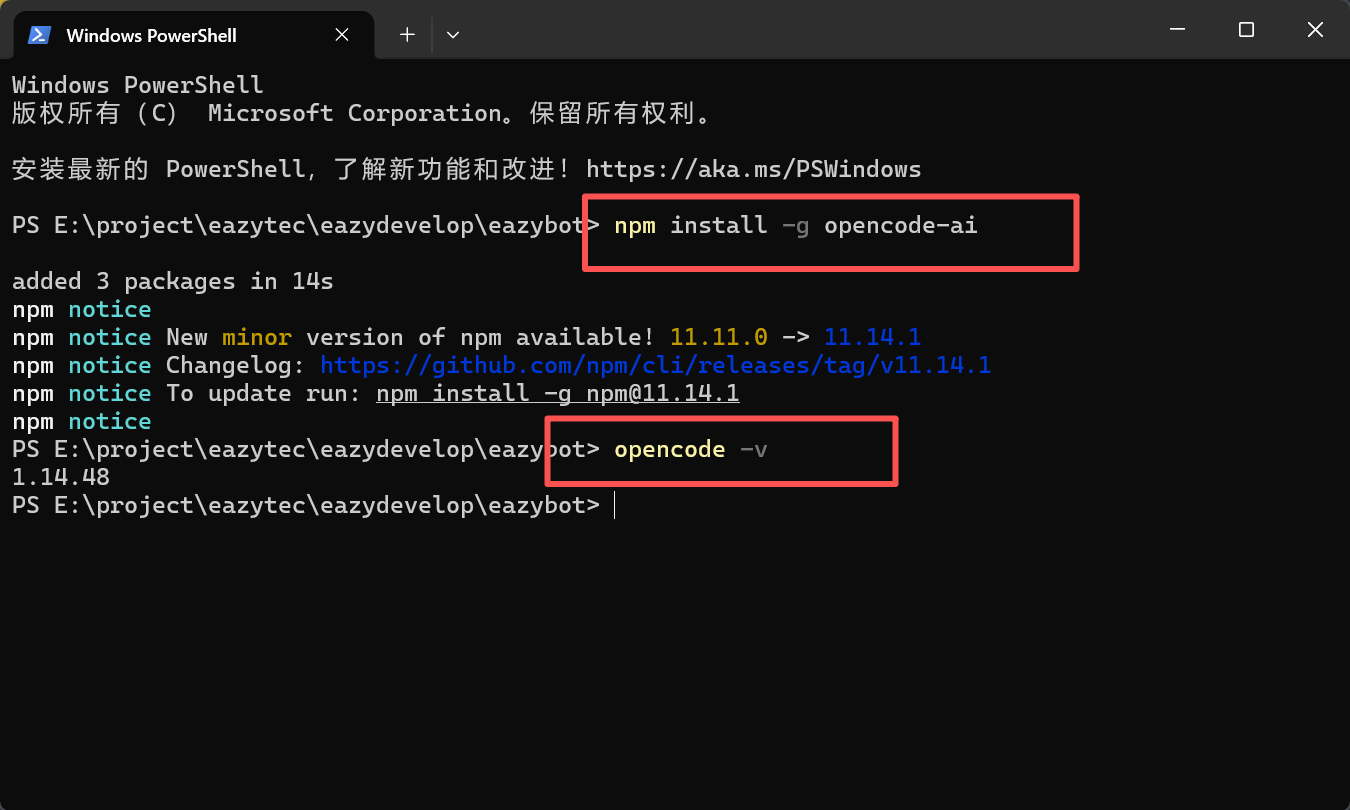
3. Configure Access Credentials
Configuration file path depends on the operating system. Please ensure the path is correct, otherwise the configuration will not take effect.
Step 1: Create Configuration File
- macOS / Linux:
~/.config/opencode/opencode.json - Windows:
C:\Users\Username\.config\opencode\opencode.json
Step 2: Fill in Configuration Content
Replace <YOUR_API_KEY> with your API key, and <OPENAI_API_MODEL> with the model name:
{
  "$schema": "https://opencode.ai/config.json",
  "provider": {
    "EazyDevelop": {
      "npm": "@ai-sdk/openai-compatible",
      "options": {
        "baseURL": "https://api-maas.eazytec-cloud.com/v1",
        "apiKey": "<YOUR_API_KEY>",
        "setCacheKey": true
      },
      "models": {
        "<OPENAI_API_MODEL>": {
          "name": "<OPENAI_API_MODEL>"
        }
      }
    }
  }
}
4. Verify Configuration
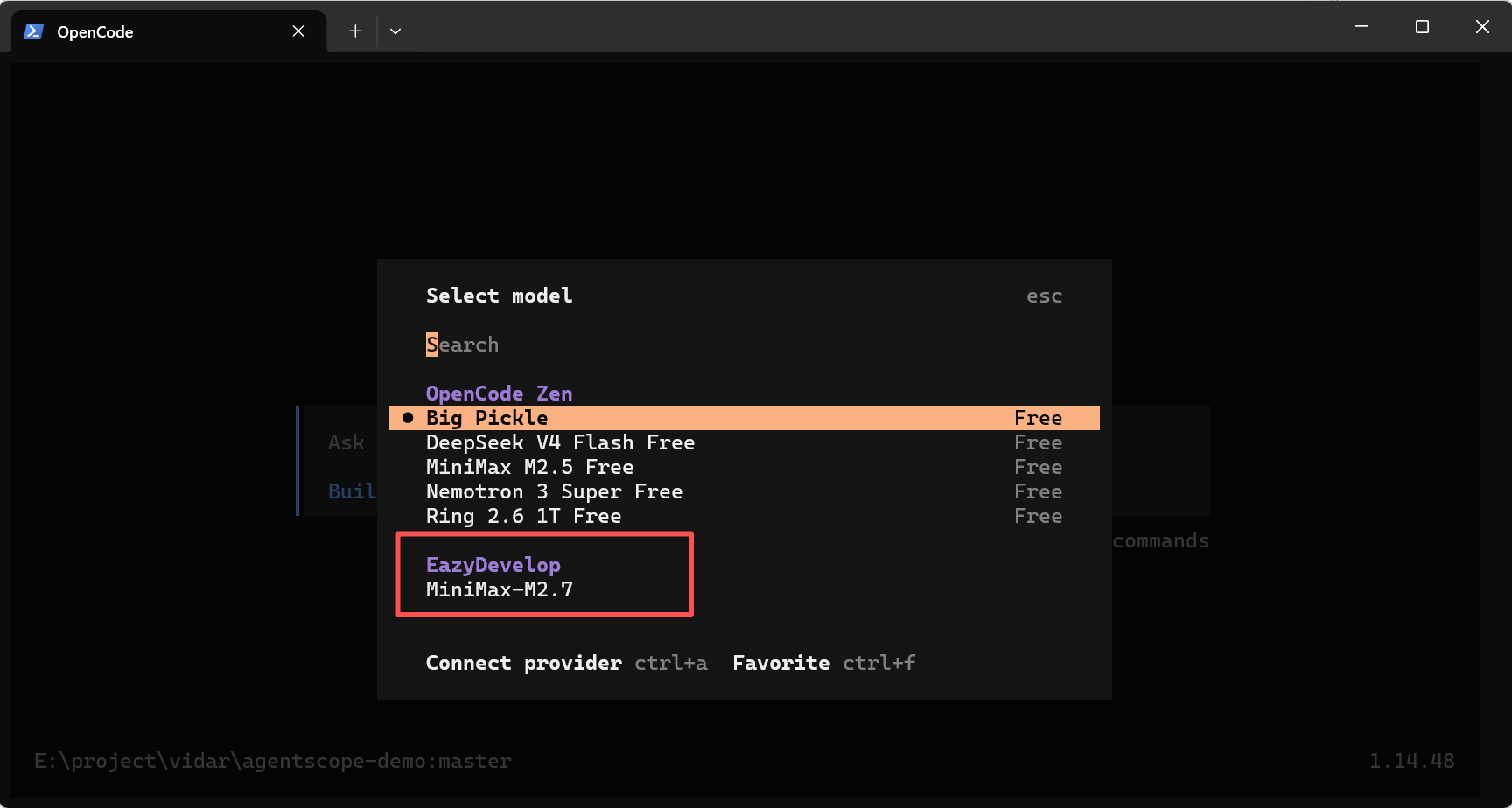
After saving the configuration, execute the command opencode, restart OpenCode, input /models, select the configured model to start conversation.
Notes
- Do not write the configuration file path incorrectly. You can view the home directory path via
echo $HOME - After saving the configuration, you need to restart OpenCode for it to take effect
- Input
/modelsto switch between different models