
Usage Management
I. Page Overview
The Usage Management page belongs to the Model menu module. It provides a unified view of team model call quota, period remaining balance, historical consumption trends, and full call details. It supports multi-dimensional filtering by time, member, and API key, giving an intuitive view of Credits consumption for administrators to manage API call costs and resource usage.
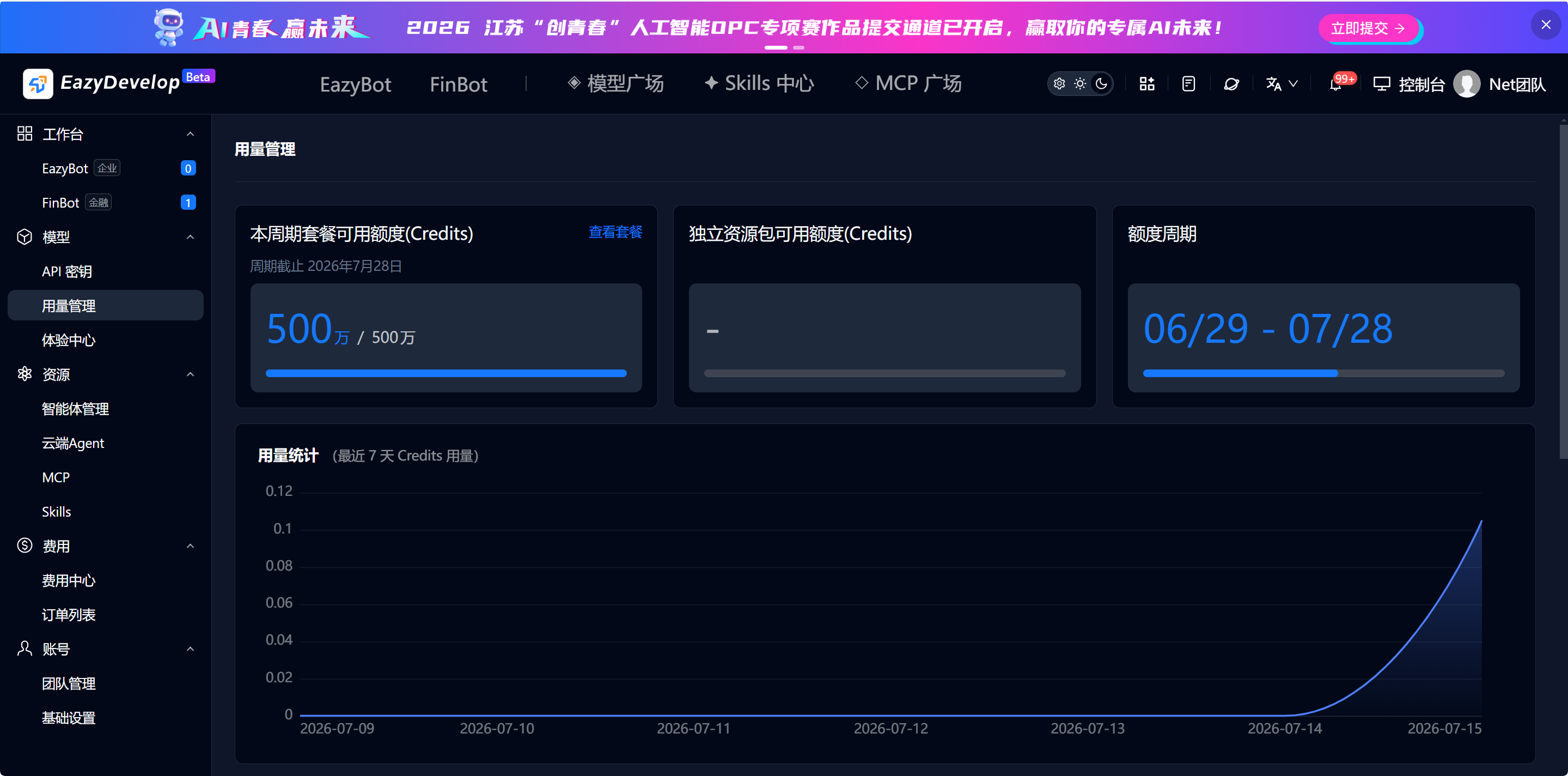
The page is divided into two core areas: the top quota overview card section and the call details list section below the usage statistics chart.
II. Top Quota Overview Card Section
Three data cards are arranged horizontally at the top of the page, displaying basic team quota information.
1. Current Period Plan Available Quota (Credits)
- Display format: Consumed quota / total plan quota, with a blue progress bar showing consumption ratio.
- Helper text: Shows the current quota period end date.
- Action button: Blue View Plan in the top-right corner. Click to navigate to the Billing Center to view current subscription plan details and quota billing rules.
- Value meaning: Credits is the platform's unified billing unit for model calls. All model API calls deduct from this quota.
2. Standalone Resource Pack Available Quota (Credits)
- Displays remaining quota from additionally purchased incremental Credits resource packs.
- If the team has not purchased a standalone resource pack, the card shows a dash
-with no available incremental quota. - Includes a gray progress bar. After purchasing a resource pack, remaining balance and consumption progress update in real time.
3. Quota Period
- Shows the full effective time range of the current plan, format
MM/DD - MM/DD. - Includes a blue progress bar showing elapsed time ratio within the current period.
- After the period expires, plan quota automatically resets to zero. Unused quota does not carry over to the next period.
III. Usage Statistics Chart (Last 7 Days Credits Usage)
- Chart purpose: Visualizes daily total Credits consumption over the last 7 days as a line chart, quickly identifying peak and low usage dates.
- X-axis: Date timeline showing 7 consecutive calendar days.
- Y-axis: Total Credits consumed that day, unit: 10K.
- Data rules: Chart data changes in sync with filter conditions below. Switching the time range refreshes the chart with the corresponding period usage curve.
IV. Call Details Filter Bar (Top filter area below chart)
Multi-dimensional filter controls are configured above the details list for flexible combined queries:
Custom time range picker
Start and end date input fields on the left. Click the calendar icon to manually select any start and end date for precise queries of call records in a specified period.Quick time buttons
- 1 day: Quickly filter all call details for today.
- 7 days: Quickly filter details for the last 7 days.
- 30 days: Quickly filter details for the last 30 days. Blue highlight indicates the currently selected state.
Member search box
- Placeholder: Search member name / phone number / email.
- Enter keywords for fuzzy search to filter call records generated by all API keys under that member.
API KEY dropdown filter
Dropdown loads all team API keys. Select a single key to view call details for that key only.
V. Call Details List
After filtering, the table below displays complete records of each model API call, sorted by usage time in descending order (most recent at top). The table contains 4 columns:
Usage time
Precise to seconds, formatYYYY-MM-DD HH:MM:SS, recording when the API call was initiated.API KEY
- Shows a masked key string to protect credential security.
- A (number) identifier at the end of the key indicates its sequence number within the team, distinguishing keys with the same name.
- Association logic: The member assigned to this key can be filtered in reverse using the member search box above.
Model
Shows the model identifier used for this call, including platform built-in general models (e.g., glm-5.2, maas/bge-m3) and EazyDevelop self-developed series models (e.g., eazy-develop-coder, eazy-develop-middle).Quota (Credits)
- Billing quota consumed by this single call.
- Small amounts display as
<0.01. - Large amounts show precise two-decimal values for single-call cost accounting.
VI. Role Permission Differences
Team owner / Administrator
Full permissions: View all quota cards, 7-day usage chart, and call details for all members and all keys across the team; use all filter conditions to search any data.Regular operator
- Can only view call records generated by API keys assigned to themselves.
- Cannot search or view other team members' usage.
- Can only filter their own keys, with no full-team data access.
- Can view quota overview but cannot click View Plan to navigate to the billing page.
VII. Common Operation Examples
Scenario 1: View team overall usage for the last 30 days
- Go to Model → Usage Management.
- Default option: All Keys, showing call data for all team keys.
- Click the 30 days quick button in the filter bar.
- View overall consumption trend in the chart and browse all key call details in the table below.
Scenario 2: Query all call records for a specific employee
- Enter the employee's name / phone number in the filter search box.
- The list automatically filters to show call data generated by all API keys under that employee.
- Combine with 1 day / 7 days / 30 days quick time filters to view that employee's consumption across different periods.
Scenario 3: Statistics for a single API key
- Select the specified API KEY from the filter dropdown.
- Combine with a custom time range to precisely calculate total Credits consumed by that key in the specified period.
Scenario supplement: View remaining plan quota
Check remaining plan quota in the top cards to determine whether a resource pack expansion is needed.
VIII. General Page Rules
- Real-time data sync: After model API calls complete, usage data syncs to the page quickly, with delay no more than 5 minutes.
- No deletion mechanism for details: All historical call records are permanently retained. Only filtering and querying are supported; manual clearing is not available.
- Quota deduction priority: Calls first consume Current Period Plan Available Quota. After plan quota is exhausted, Standalone Resource Pack Available Quota is automatically deducted. When both are exhausted, model API calls stop.