
Cursor Integration Guide
Configure EazyDevelop models through OpenAI protocol in Cursor for custom model integration, enabling code completion, code generation, debugging, and other features.
Note: Only users subscribed to Cursor Pro and above support custom model configuration.
1. Get API Key
- Refer to Model Activation Help Documentation
2. Install Cursor
Visit Cursor Official Website to download and install the version suitable for your operating system.
3. Create Custom Model
Step 1: Open Models Settings
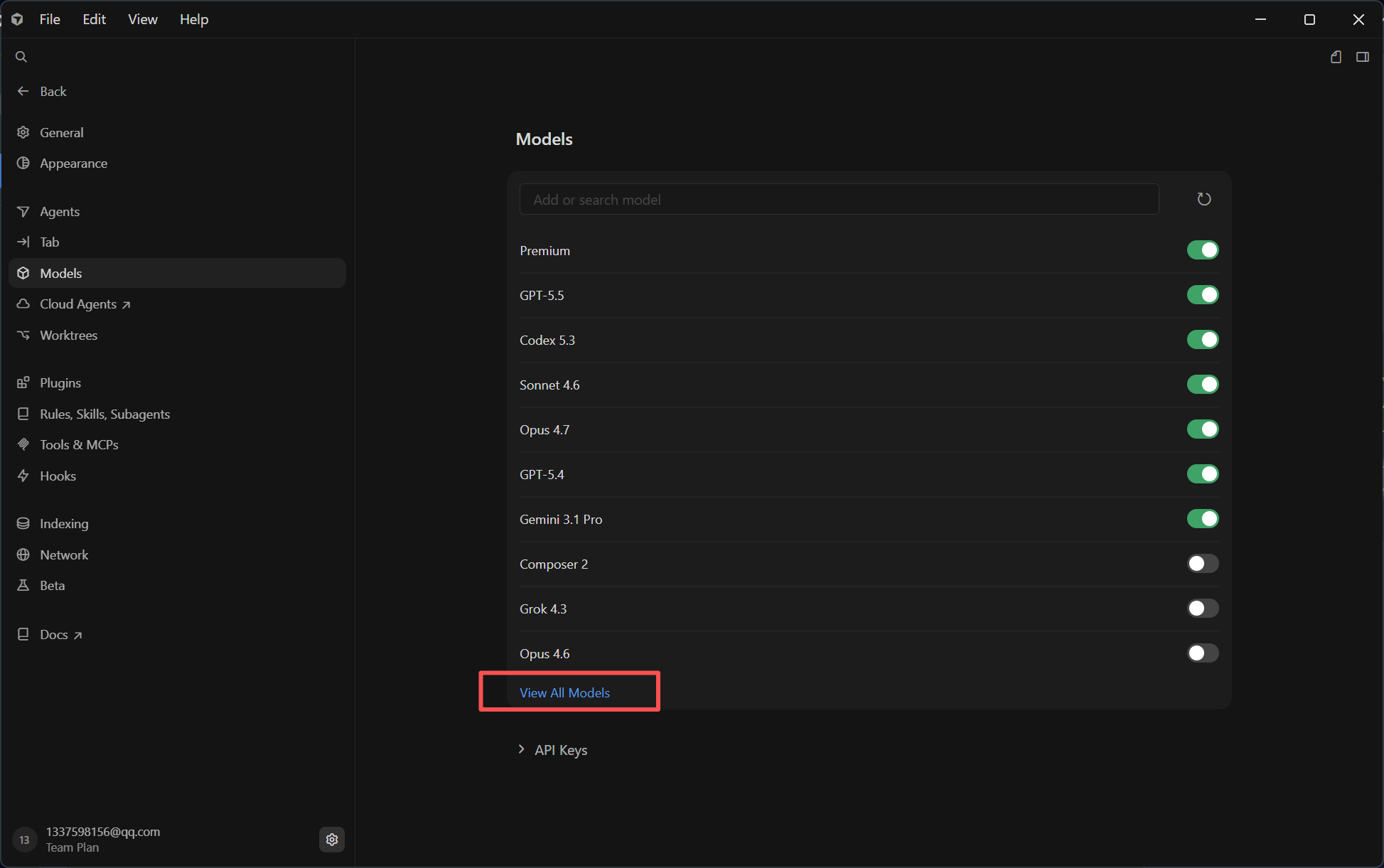
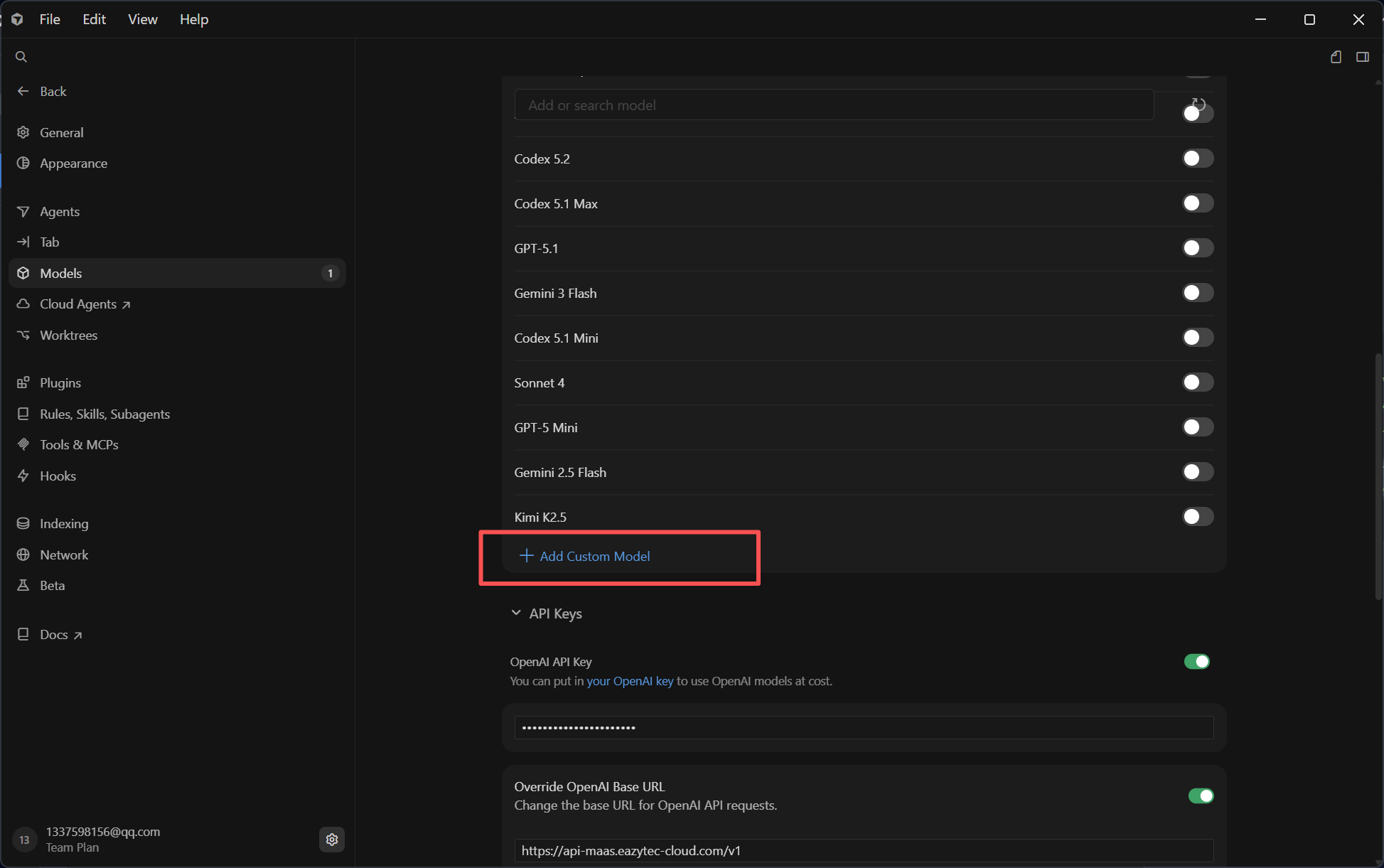
In Cursor, open the Models section, click View All Models, then click Add Custom Model.
Step 2: Configure Model Information
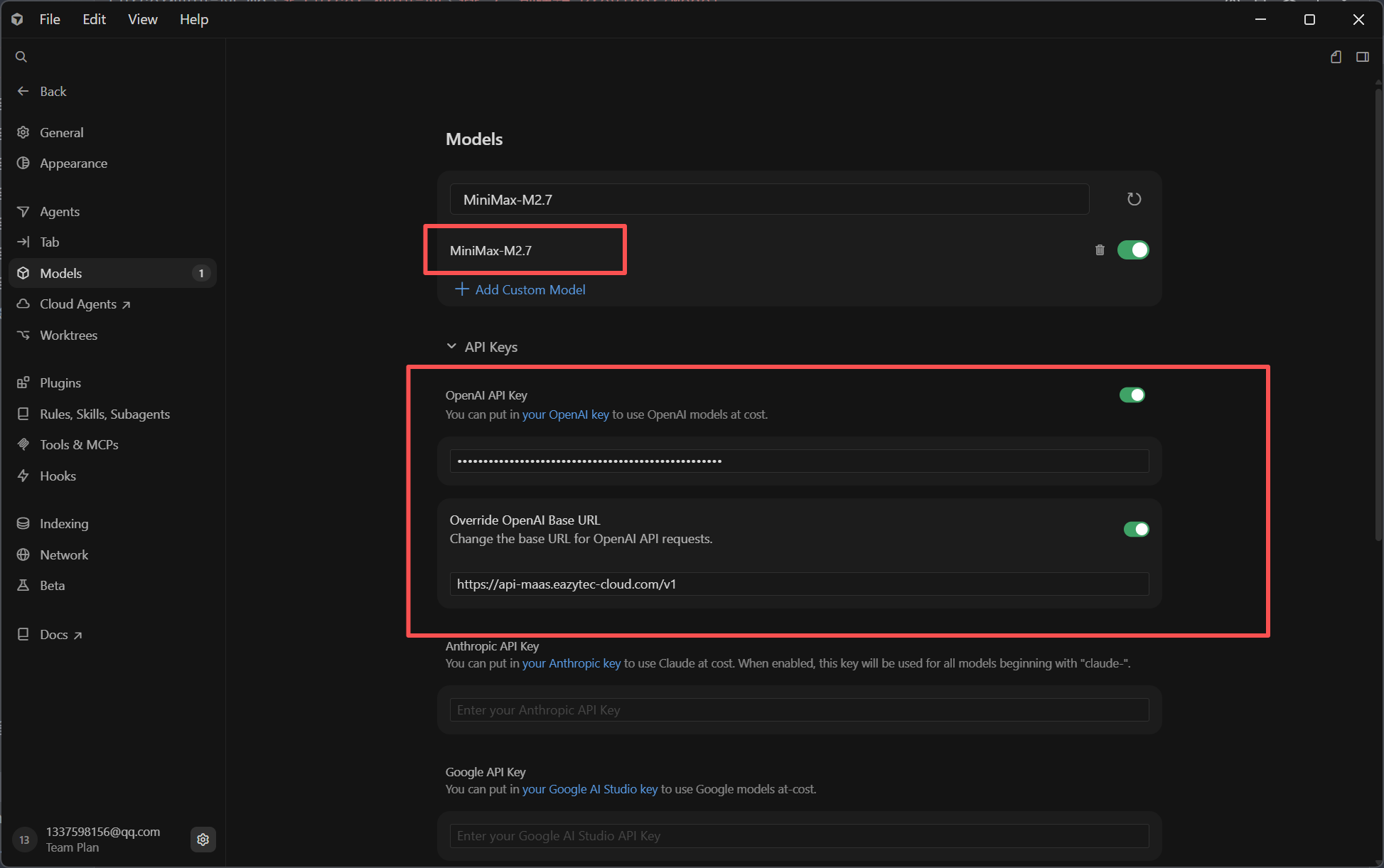
Select OpenAI Protocol, configure as follows:
| Configuration Item | Description |
|---|---|
| OpenAI API Key | Get from EazyDevelop platform |
| Override OpenAI Base URL | Replace with https://api-maas.eazytec-cloud.com/v1 |
| Model Name | Enter the model name activated on EazyDevelop, such as MiniMax-M2.7 |
Step 3: Save and Switch Model
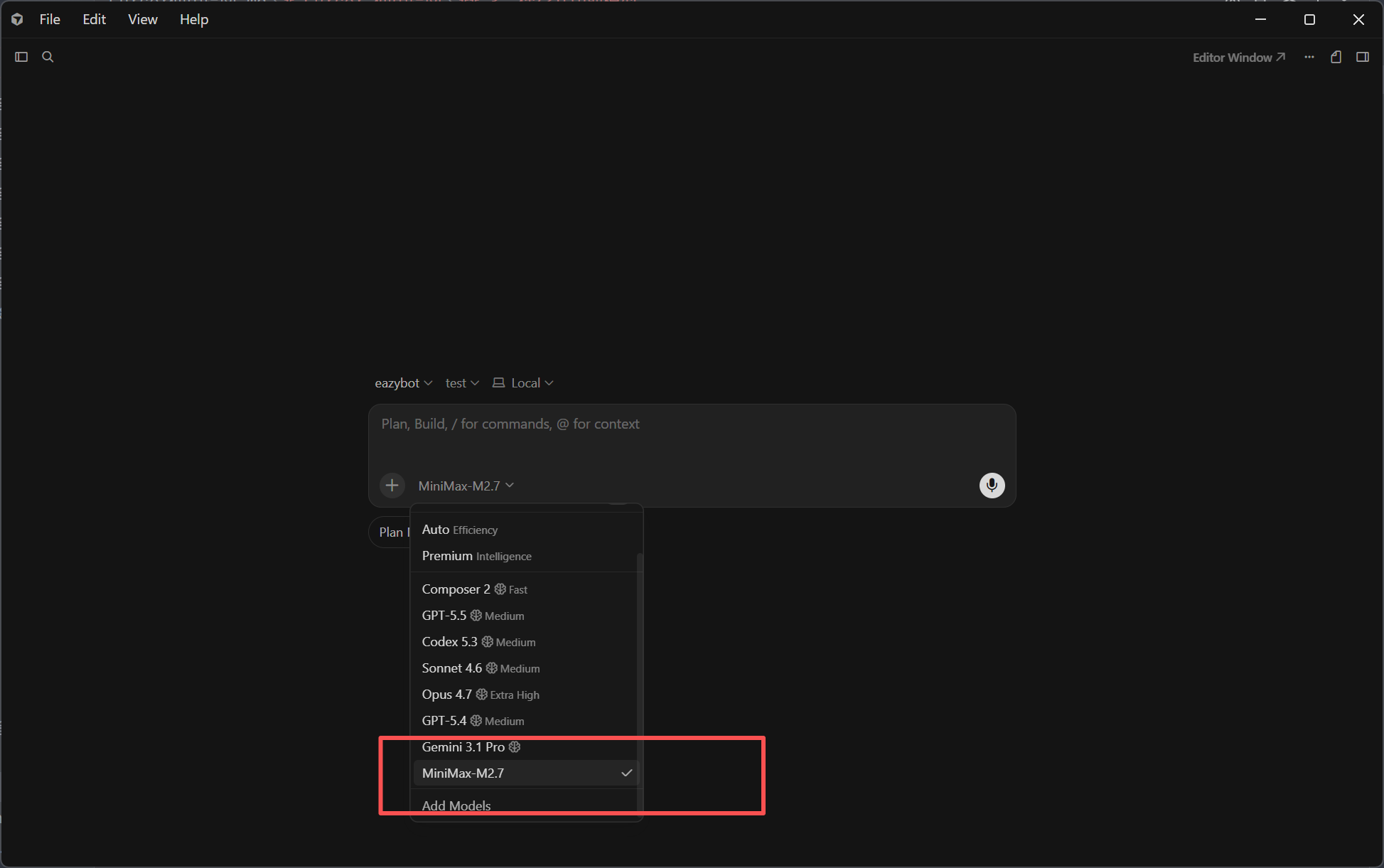
After configuration is complete, save the settings and turn off Auto on the homepage, select the model you just created.
4. Start Using
After configuration is complete, press
Ctrl+Shift+Lto open the AI chat panel and start using.
With this setup, you can start using models provided by the EazyDevelop platform for code generation, debugging, task analysis, and other work.
Notes
- Only Cursor Pro and above support custom models; lower version users cannot use this feature
- If the model is unavailable, please check if the API Key is valid and the model name is correct
- It is recommended to turn off Auto mode and manually select the configured custom model