
Channels
In FinBot, you can configure and manage different communication channels, allowing agents to converse with you on multiple platforms.
Supported Channel Types
FinBot supports various communication channels, including but not limited to:
- Console: Web-based chat (enabled by default)
- Feishu: Chat within Feishu application
- QQ: QQ chatbot
- WeChat: WeChat messaging bot
- DingTalk: Chat within DingTalk application
- Others: Discord, Telegram, Matrix, Mattermost, MQTT, SIP, Twilio, etc.
Channel Configuration Entry
In the FinBot interface left navigation bar, click the Channels icon to enter the channel configuration page.
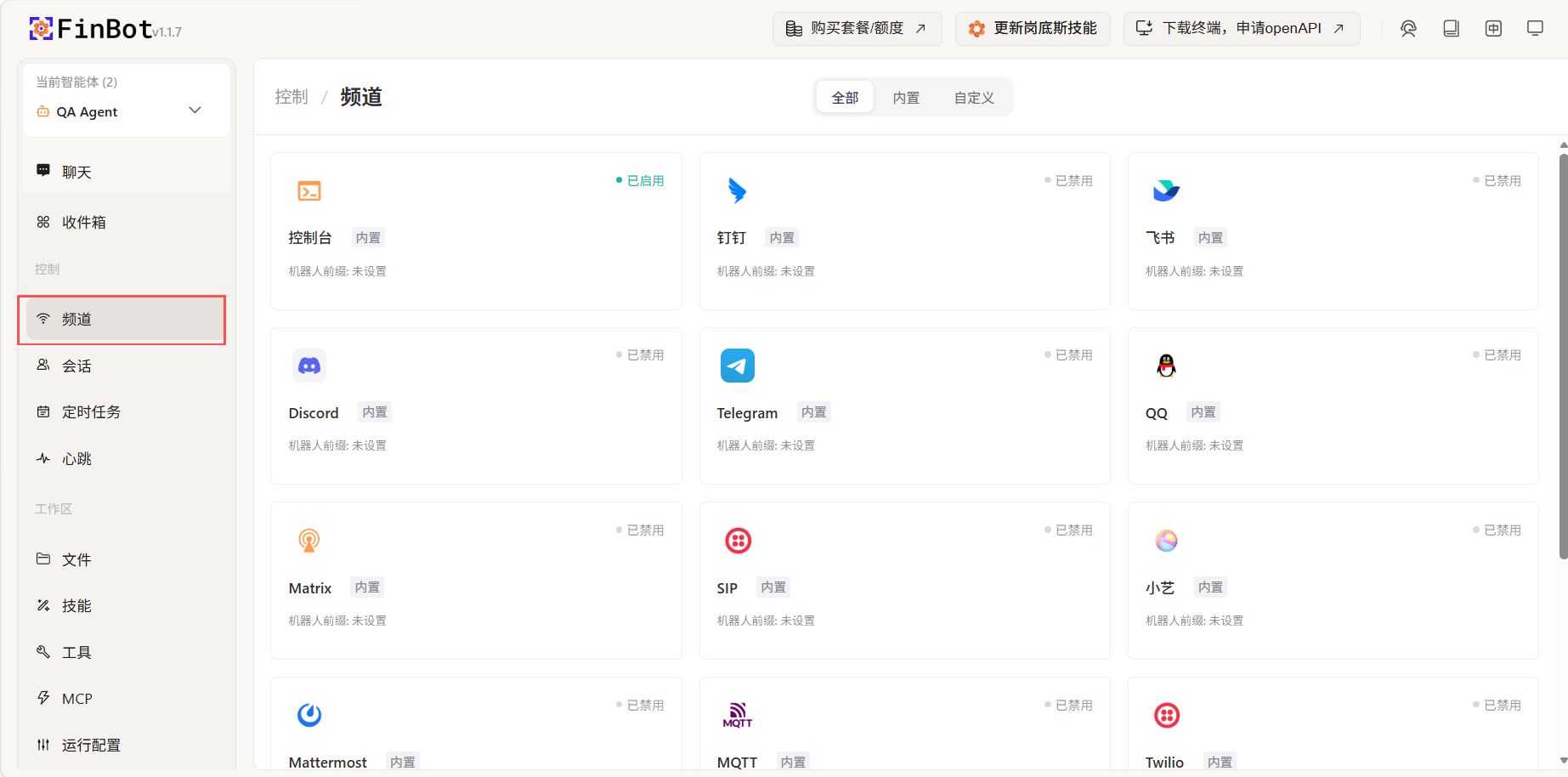
Feishu
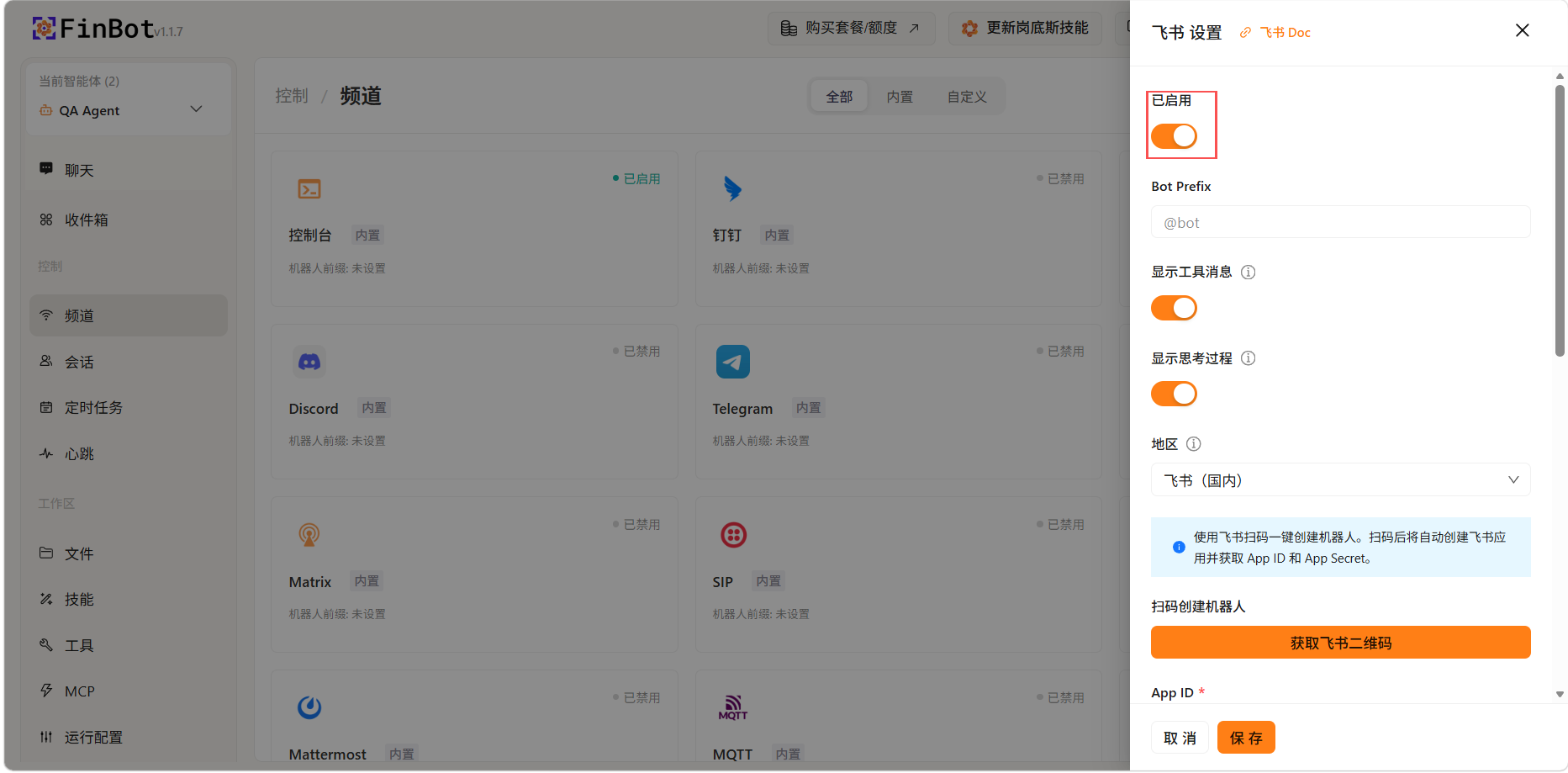
Enable Feishu Channel
On the channel configuration page, find the Feishu option and click the Enabled switch to turn it on.
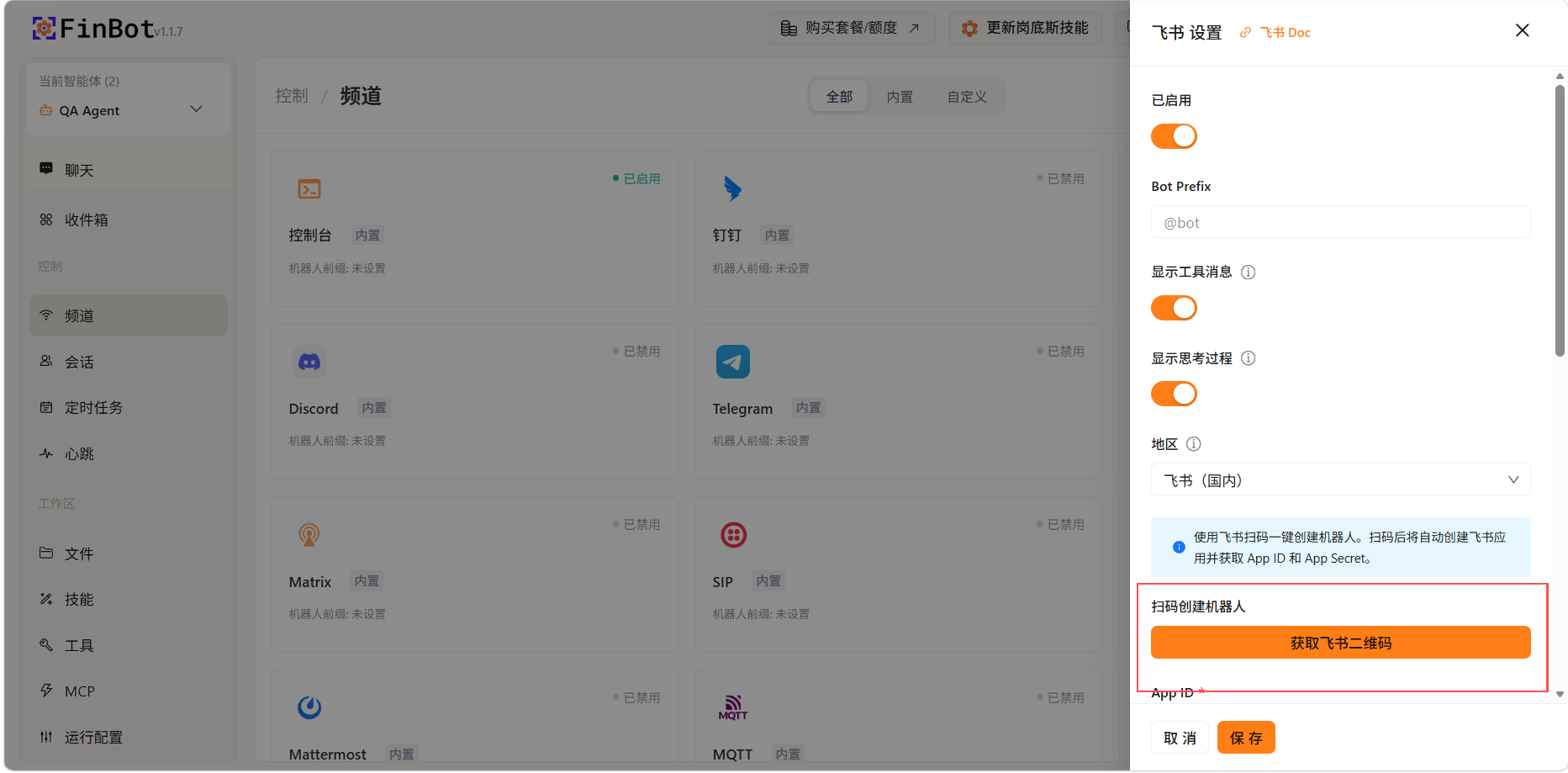
Scan QR Code for Authorization
- Click the Get Feishu QR Code button
- Use the Feishu App to scan the displayed QR code
- After completing authorization, the system will automatically create a Feishu app and obtain App ID and App Secret, filling them into the corresponding fields
Save Configuration
After confirming that App ID and App Secret have been automatically filled in, click the Save button at the bottom of the page to complete the configuration.
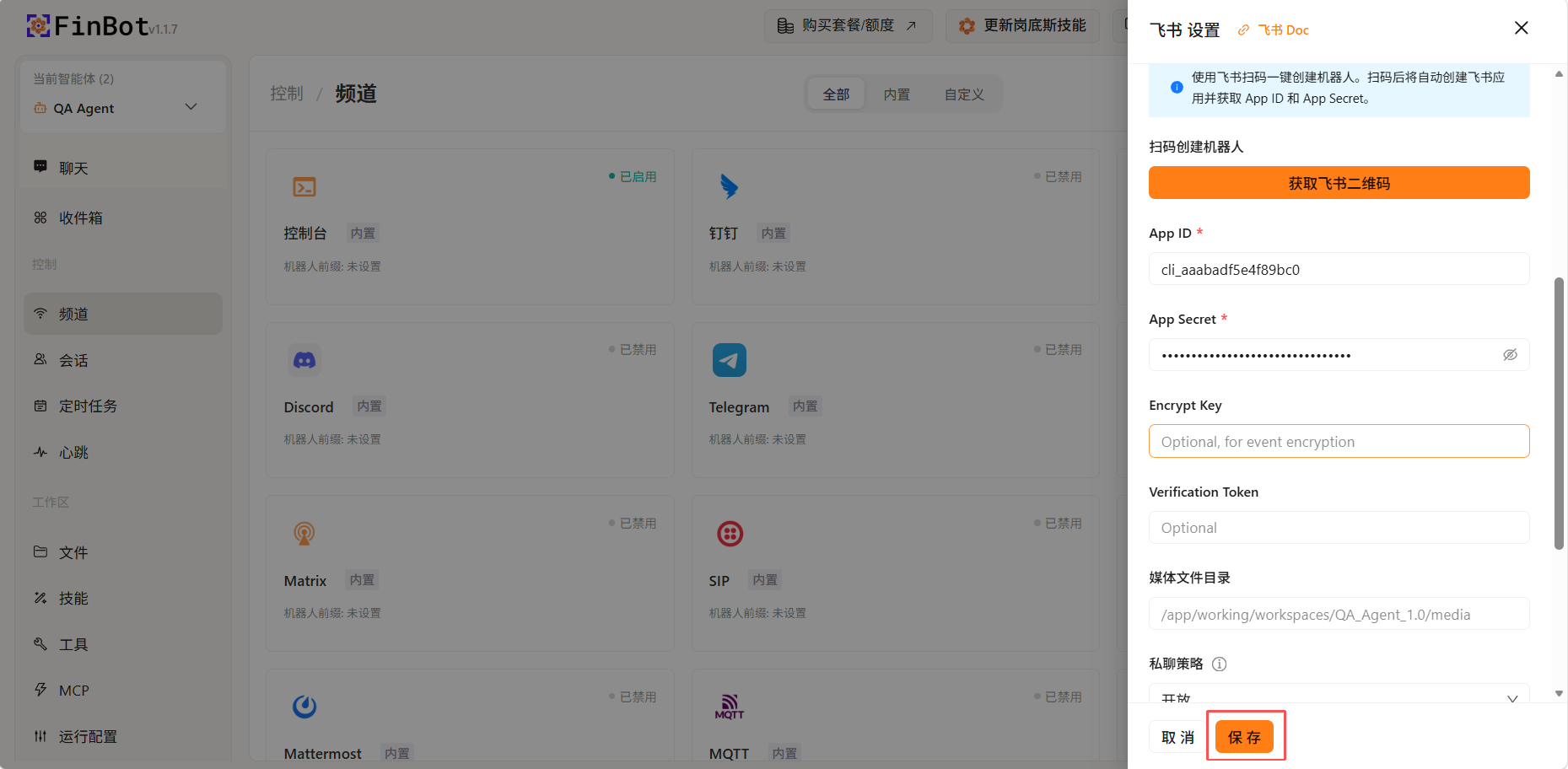
Tip: After scanning the QR code for authorization, App ID and App Secret will be automatically filled in, no manual input required. If you need to configure encryption or verification functions, you can optionally fill in Encrypt Key and Verification Token.
Using Agent in Feishu
- Open the Feishu application and go to the Messages page
- Enter the agent name in the search box
- Click on the agent avatar to enter the conversation interface
- Start conversing with the agent and enjoy the convenience of AI assistance
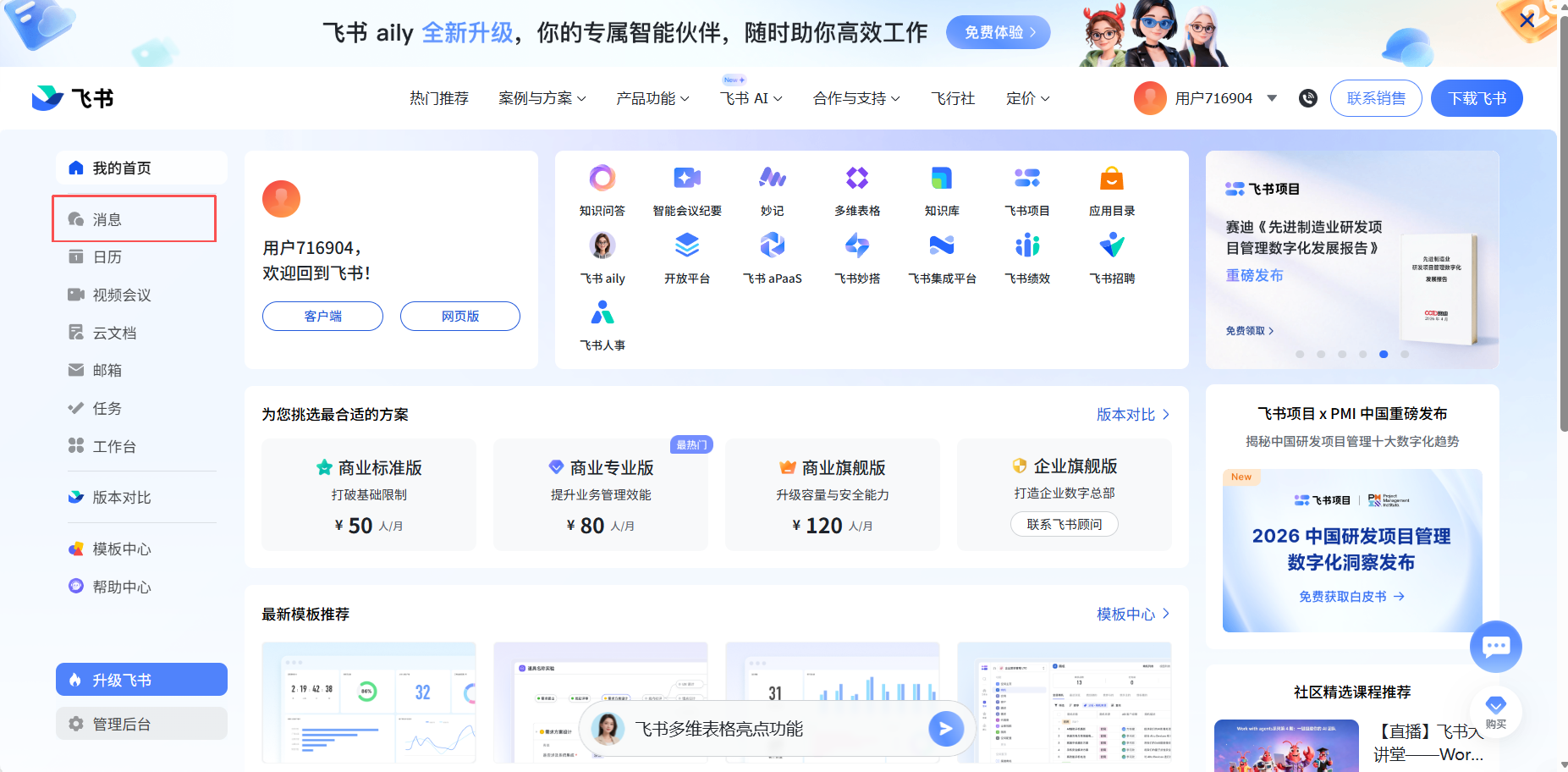
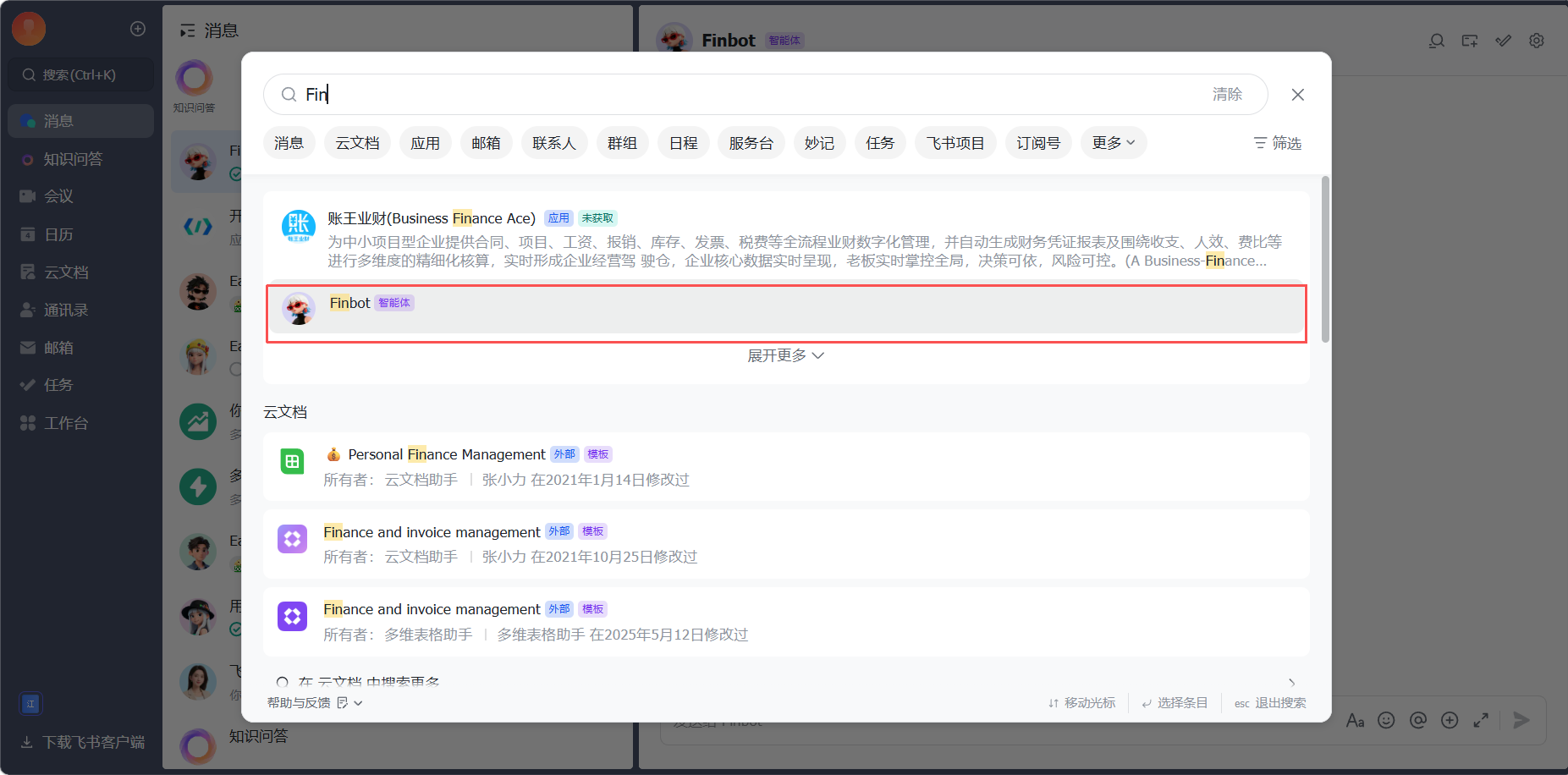
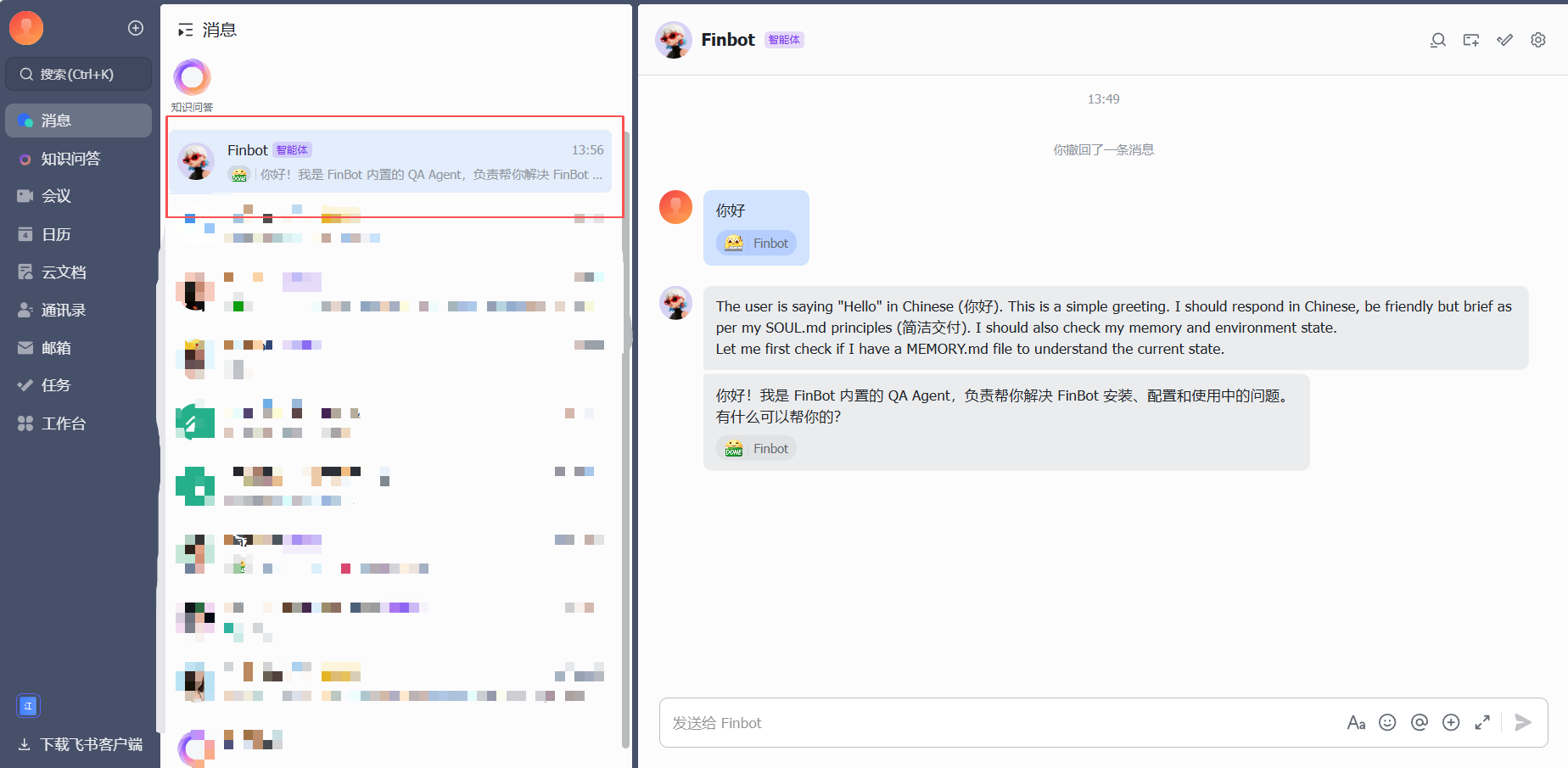
Tip: If you cannot find the agent, please check whether the Feishu channel has been successfully enabled and saved.
QQ
Create Bot on QQ Open Platform
- Visit QQ Open Platform
- Log in with your QQ account
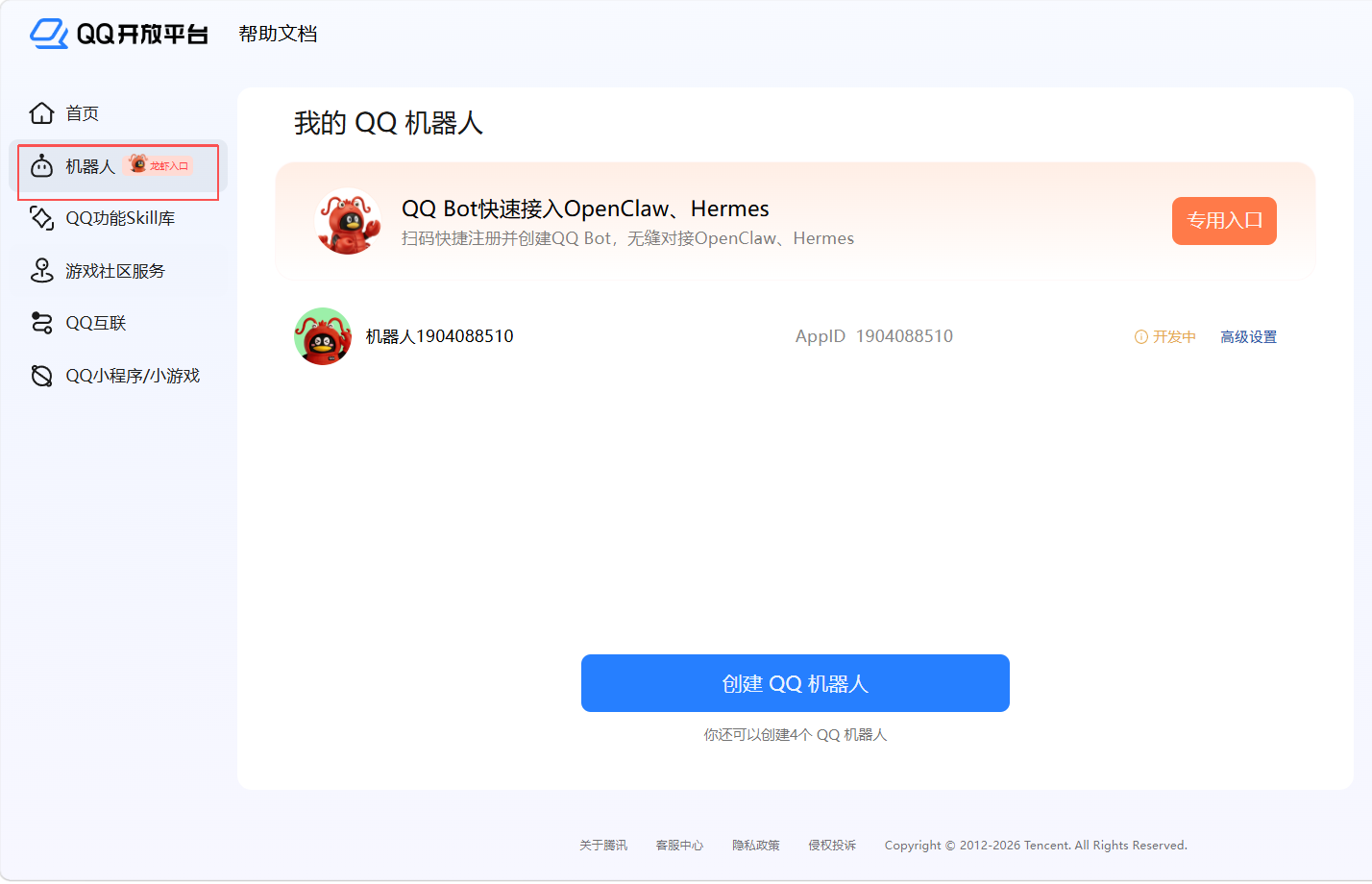
- Click the Create QQ Bot button
- Follow the prompts to complete bot creation
Get AppID and AppSecret
- On the My Bots page, find the created bot
- Copy the AppID and AppSecret information
- Please save AppSecret properly; for security reasons, viewing it again will force a reset
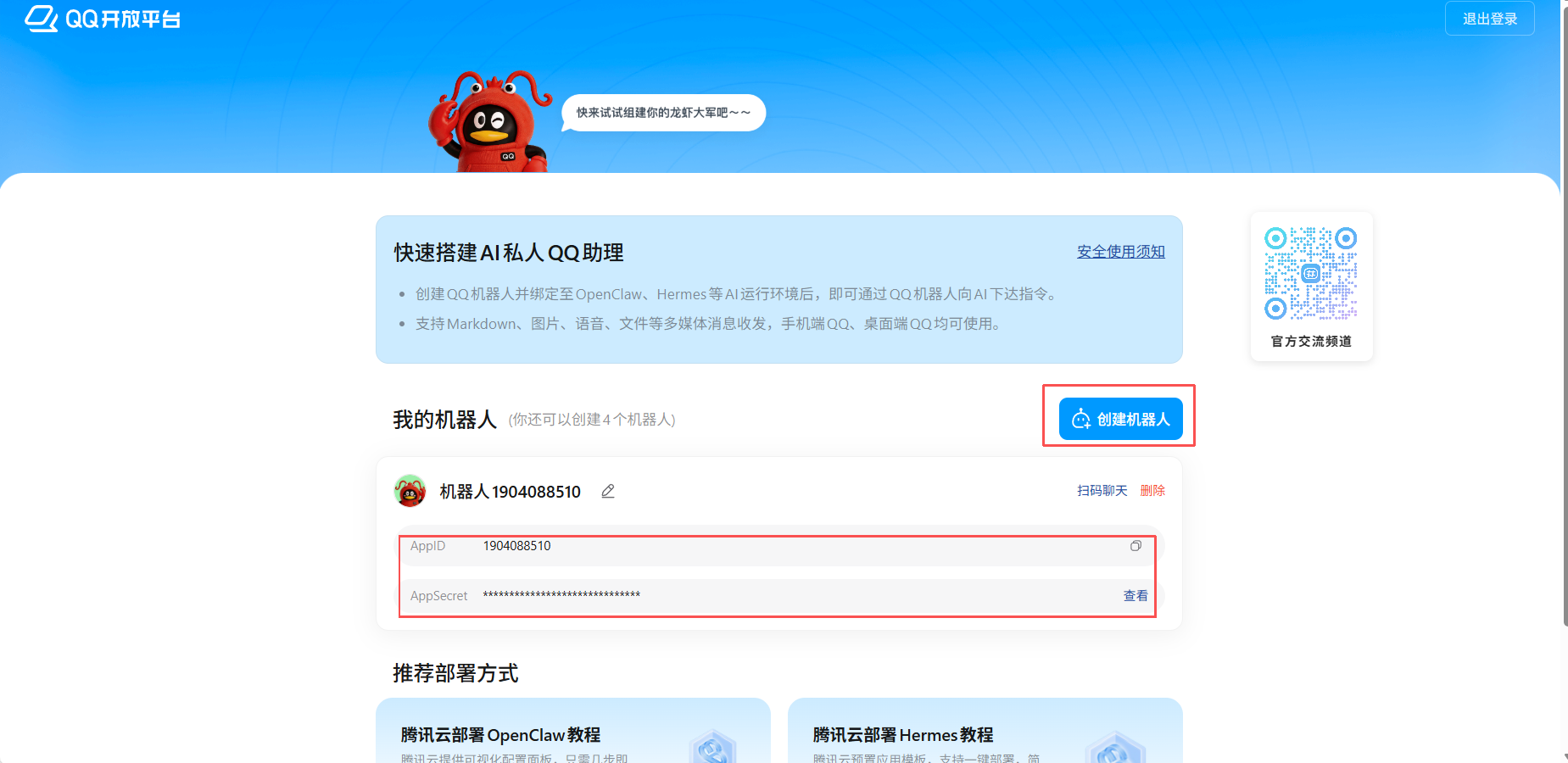
Configure QQ Channel in FinBot
- On the FinBot channel configuration page, find the QQ option and click the Enabled switch to turn it on
- Paste the copied AppID into the App ID field
- Paste the copied AppSecret into the Client Secret field
- Click the Save button to complete configuration
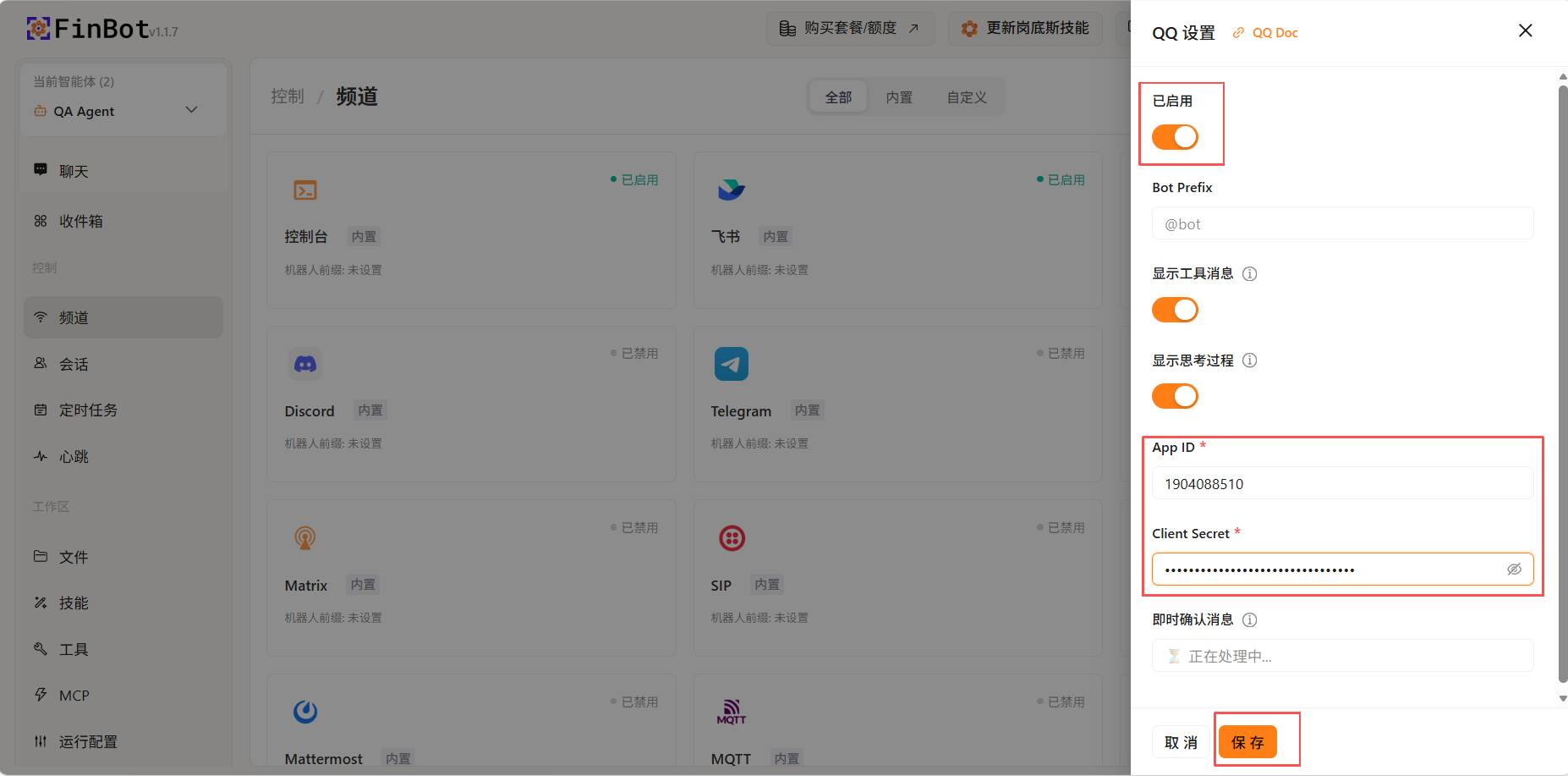
Tip: AppSecret is shown only once, please save it properly. If lost, you need to recreate the bot to obtain it.
Using Agent in QQ
After completing QQ bot creation and channel configuration, you can start conversing directly.
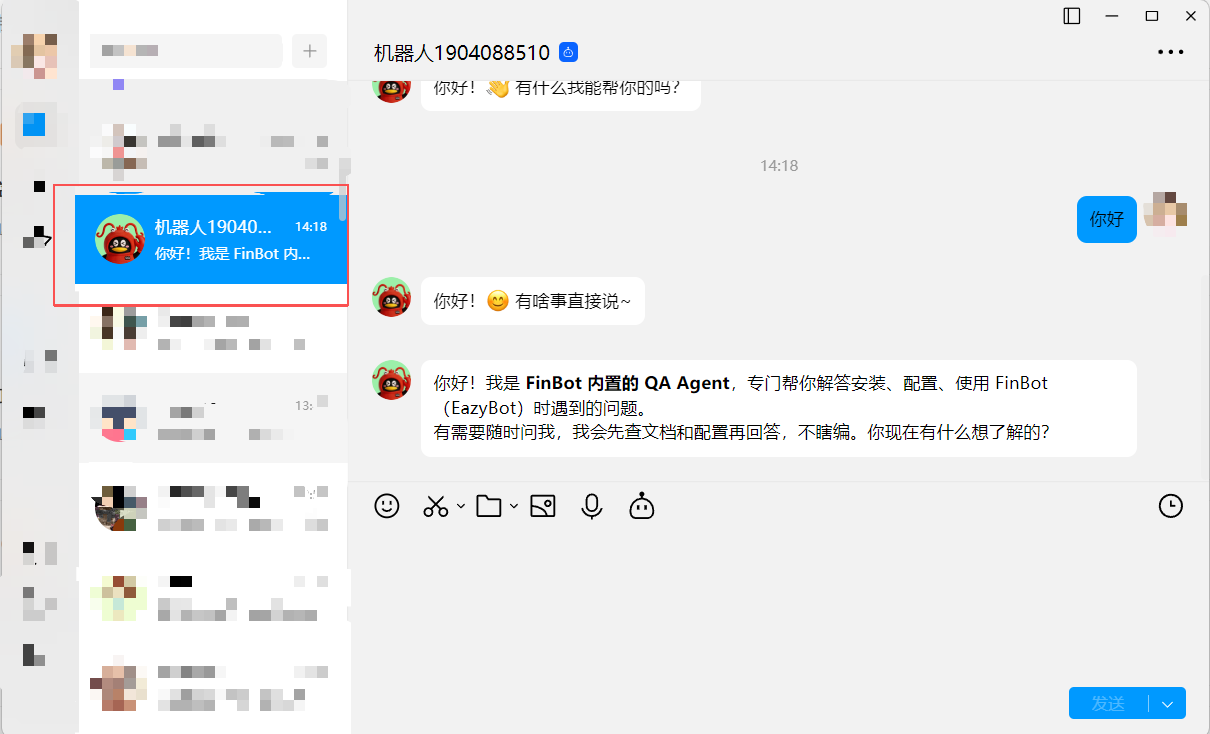
Tip: If you don't receive bot messages, you can open QQ and find the bot in the chat list to enter the conversation interface.
WeChat
Enable WeChat Channel
On the channel configuration page, find the WeChat option and click the Enabled switch to turn it on.
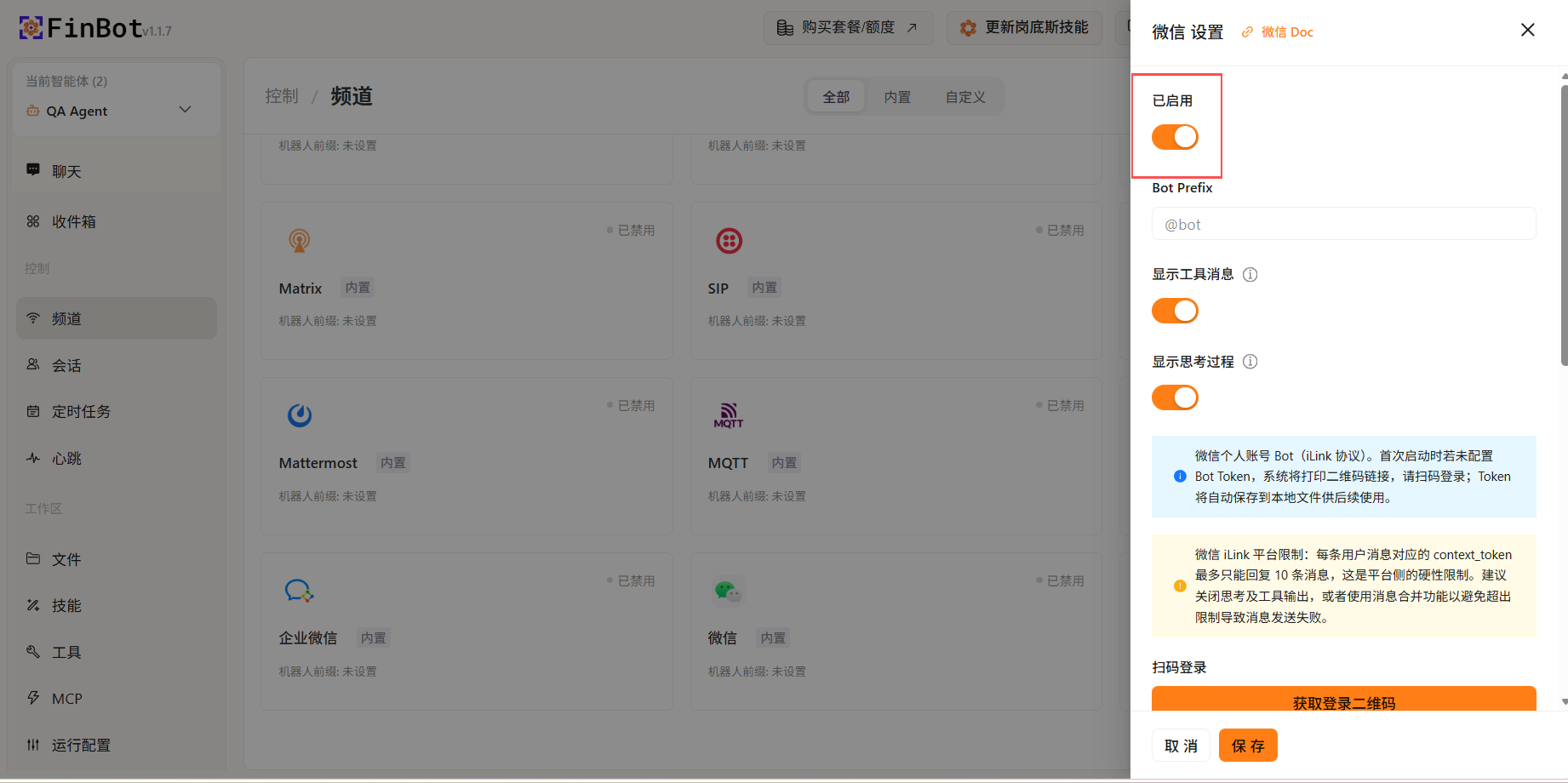
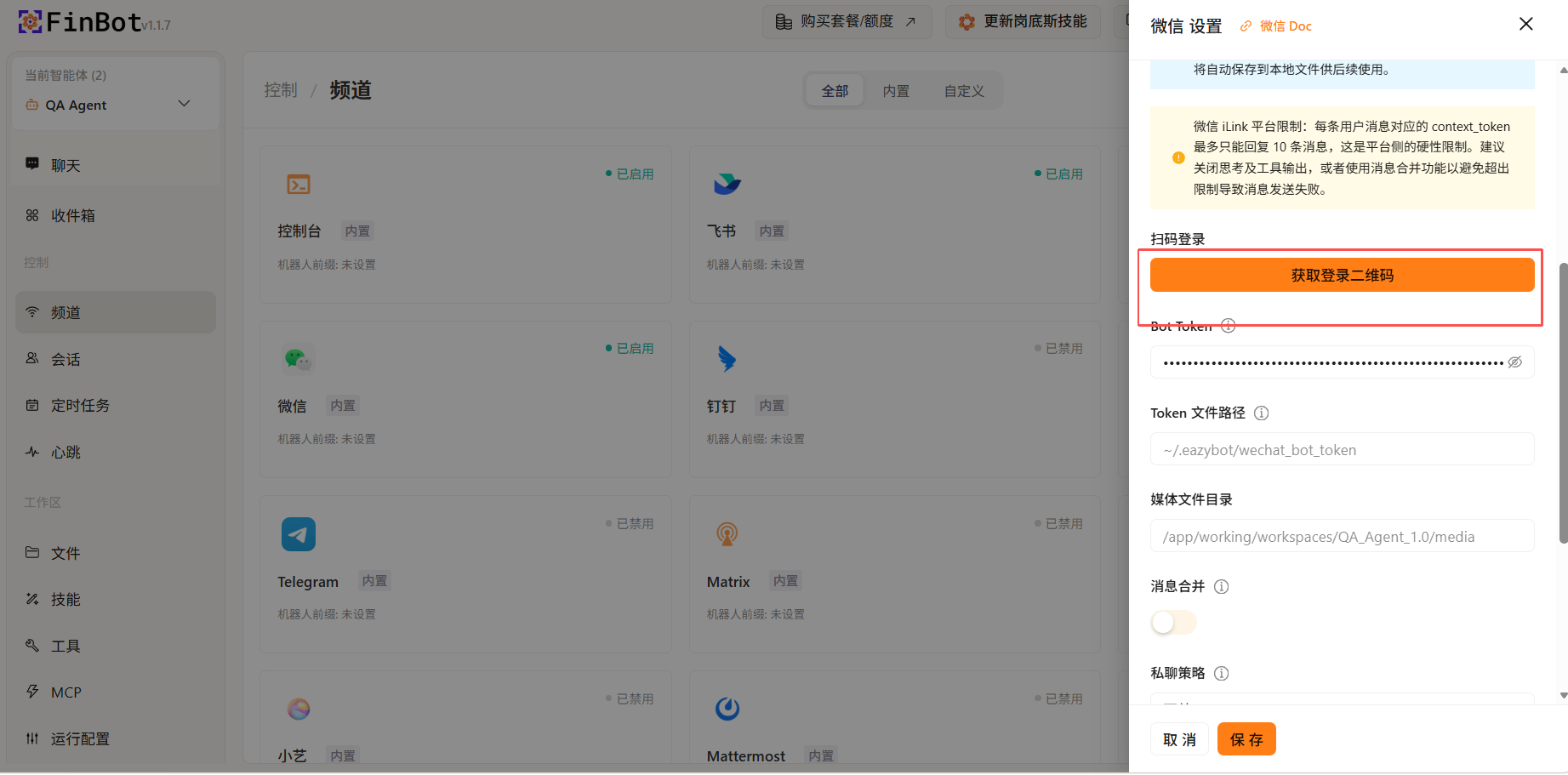
Scan QR Code for Authorization
- Click the Get Login QR Code button
- Use WeChat to scan the displayed QR code
- After completing authorization in WeChat, you will be automatically redirected to the agent's chat interface without manual searching
- The system will automatically obtain WeChat app credential information and fill it into the corresponding fields
Save Configuration
After confirming that credential information has been automatically filled in, click the Save button at the bottom of the page to complete the configuration.
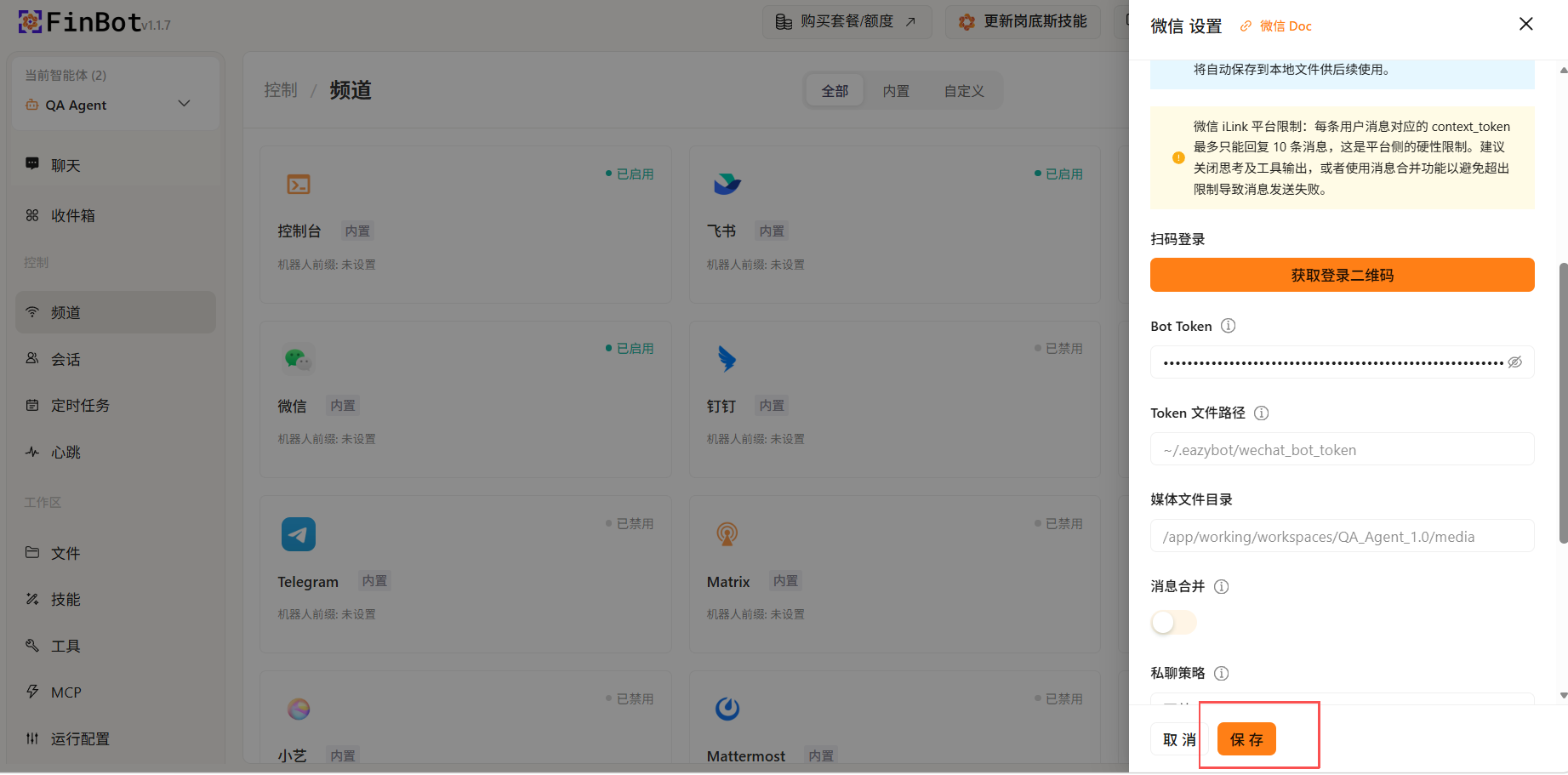
Tip: After scanning the QR code for authorization, related credentials will be automatically filled in, no manual input required.
Using Agent in WeChat
After scanning the QR code for authorization, the system will automatically redirect to the agent's chat interface, and you can start conversing directly.
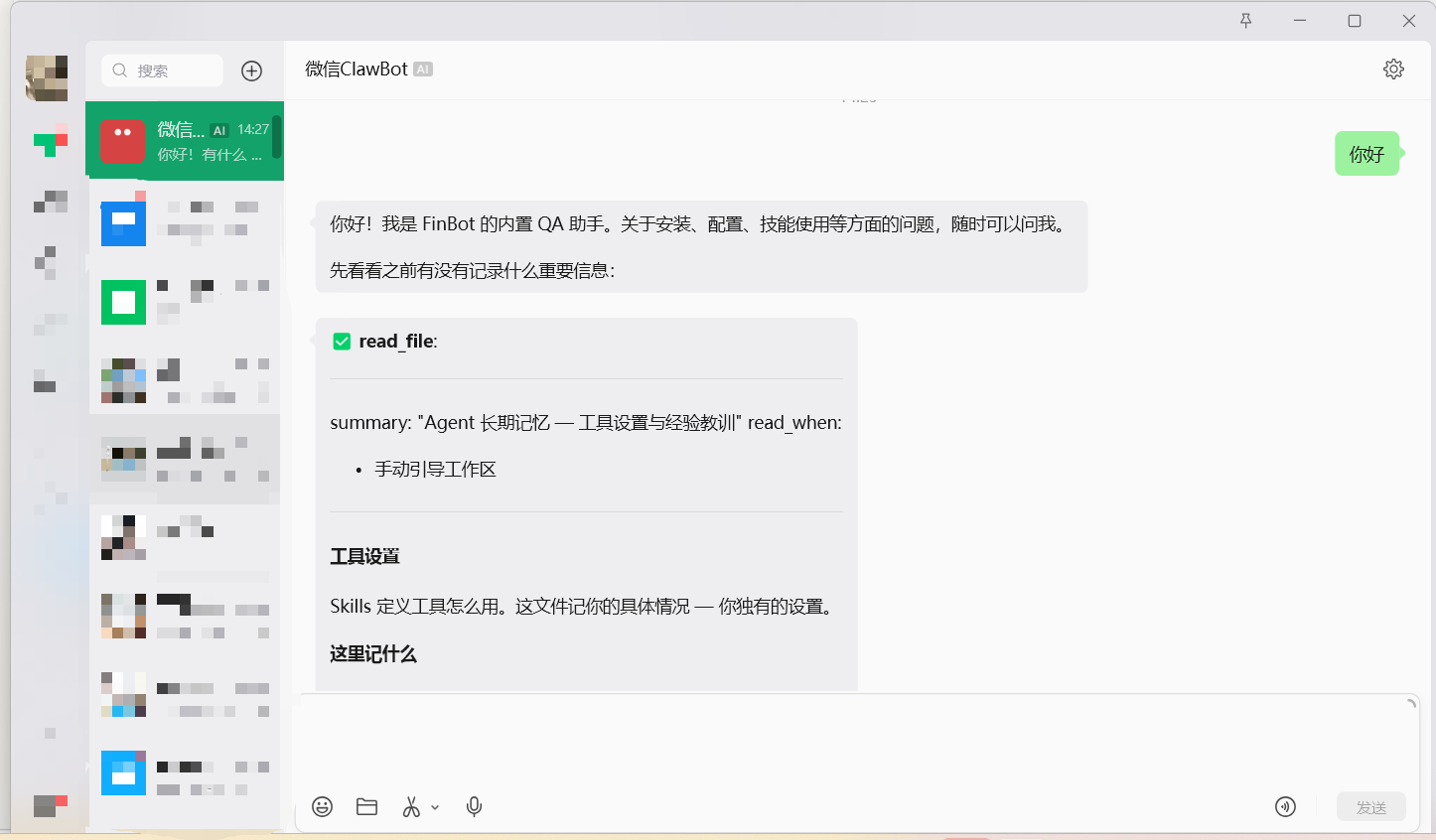
Tip: If not automatically redirected, you can open WeChat and find the agent in the chat list to enter the conversation interface.
DingTalk
Enable DingTalk Channel
On the channel configuration page, find the DingTalk option and click the Enabled switch to turn it on.
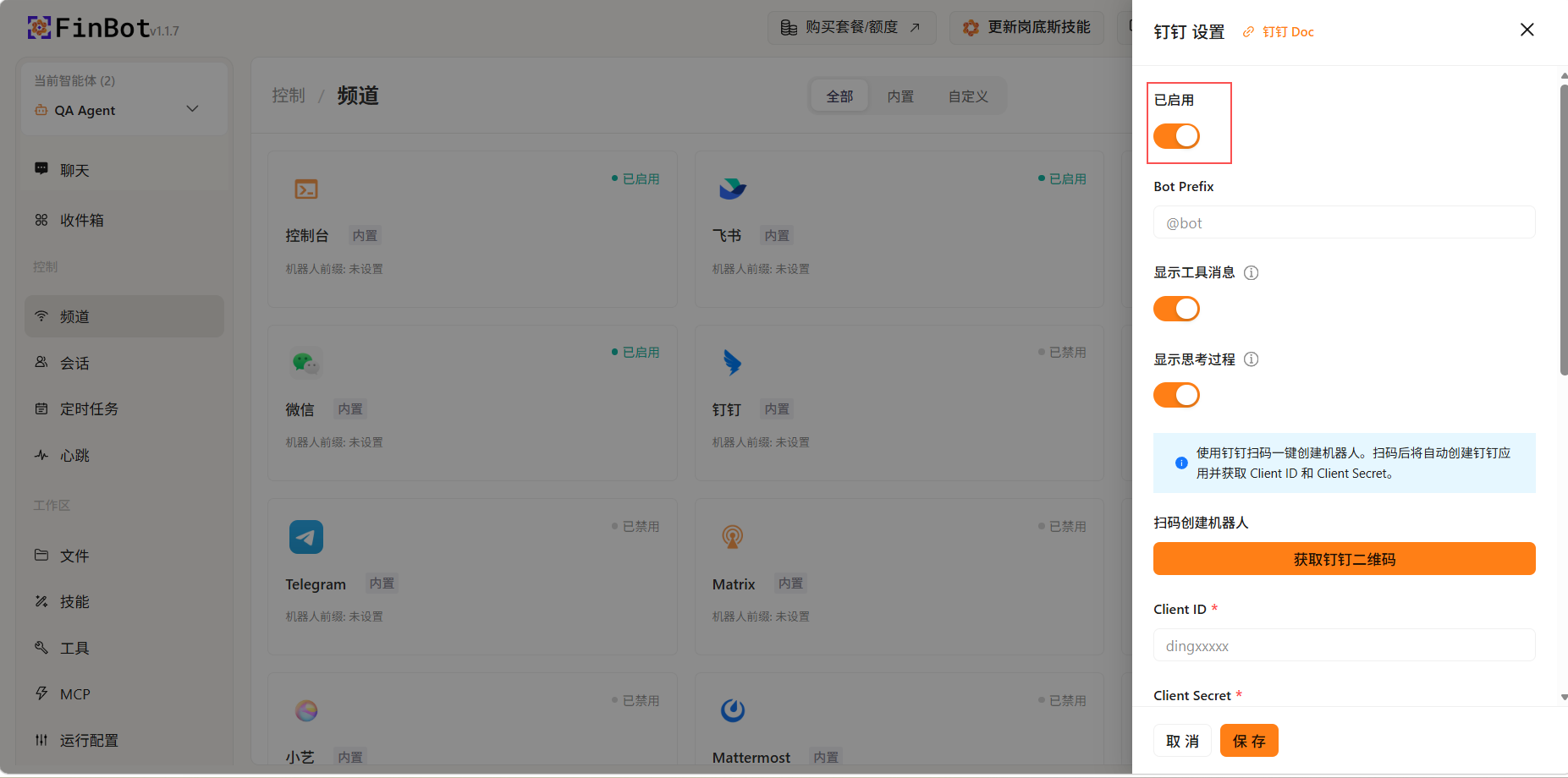
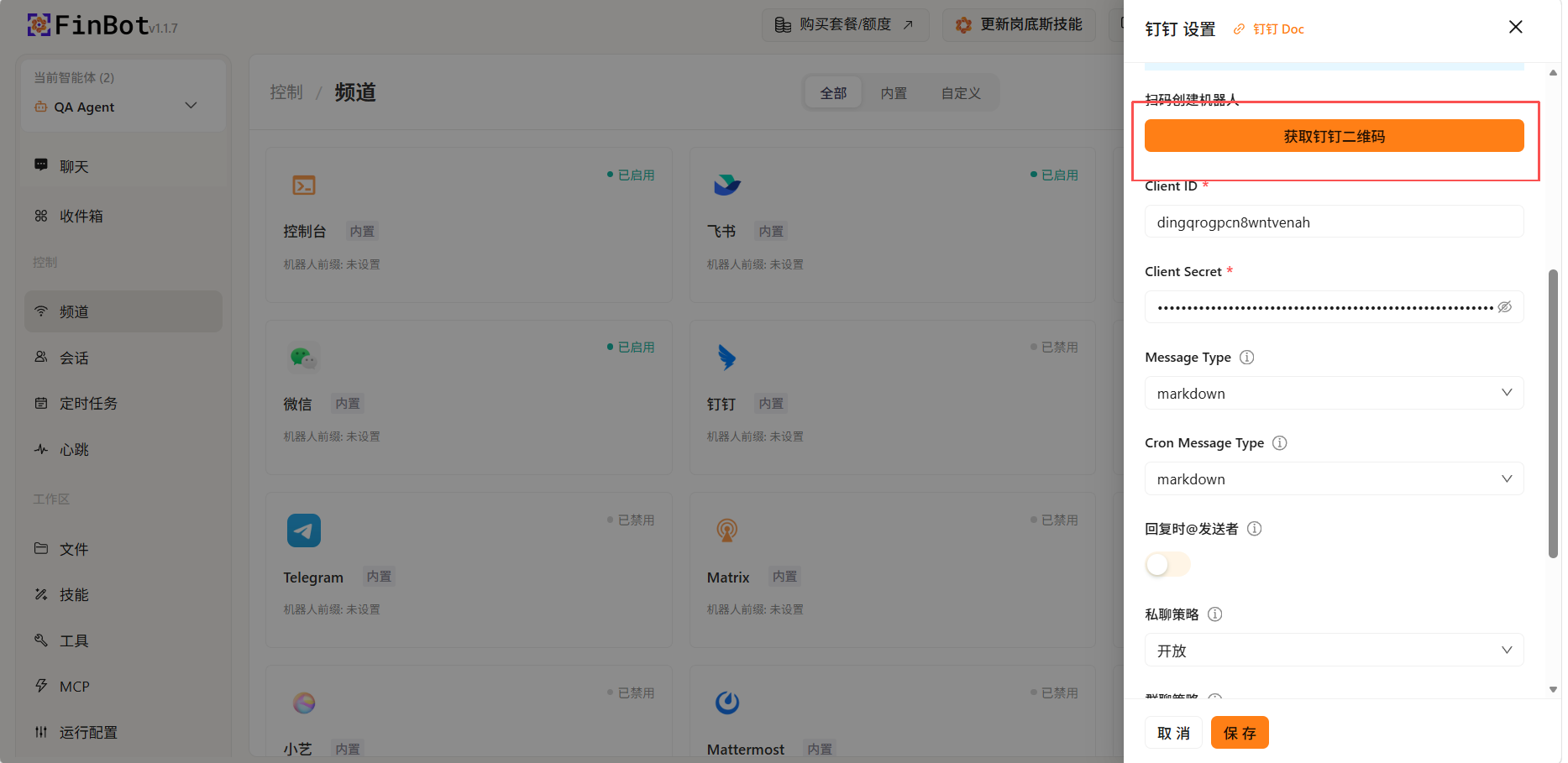
Scan QR Code for Authorization
- Click the Get DingTalk QR Code button
- Use the DingTalk App to scan the displayed QR code
- After completing authorization in DingTalk, the system will automatically obtain DingTalk app credential information and fill it into the corresponding fields
Save Configuration
After confirming that credential information has been automatically filled in, click the Save button at the bottom of the page to complete the configuration.
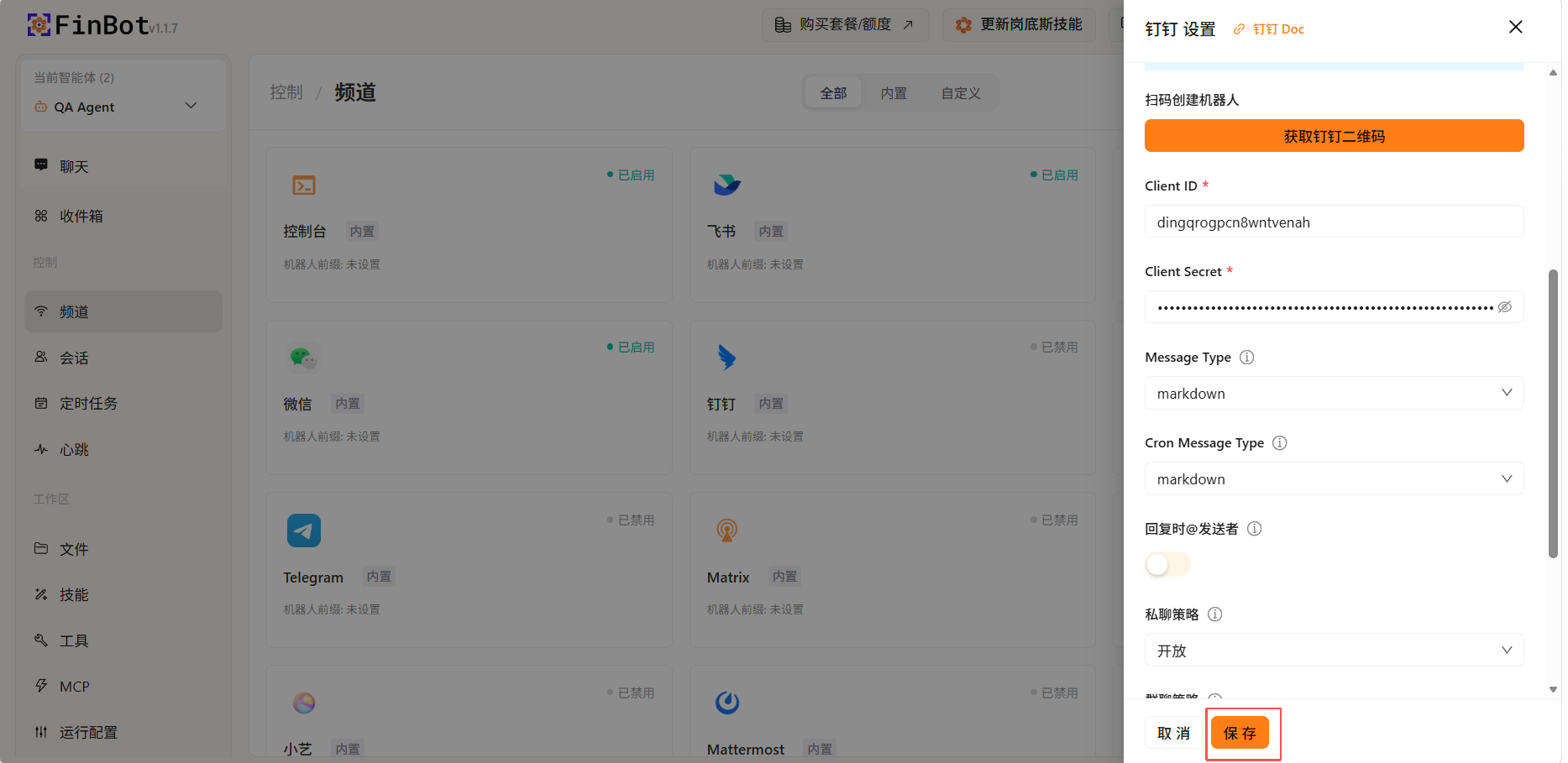
Tip: After scanning the QR code for authorization, related credentials will be automatically filled in, no manual input required.
Using Agent in DingTalk
After authorization is complete, you can find the agent in DingTalk and start conversing.
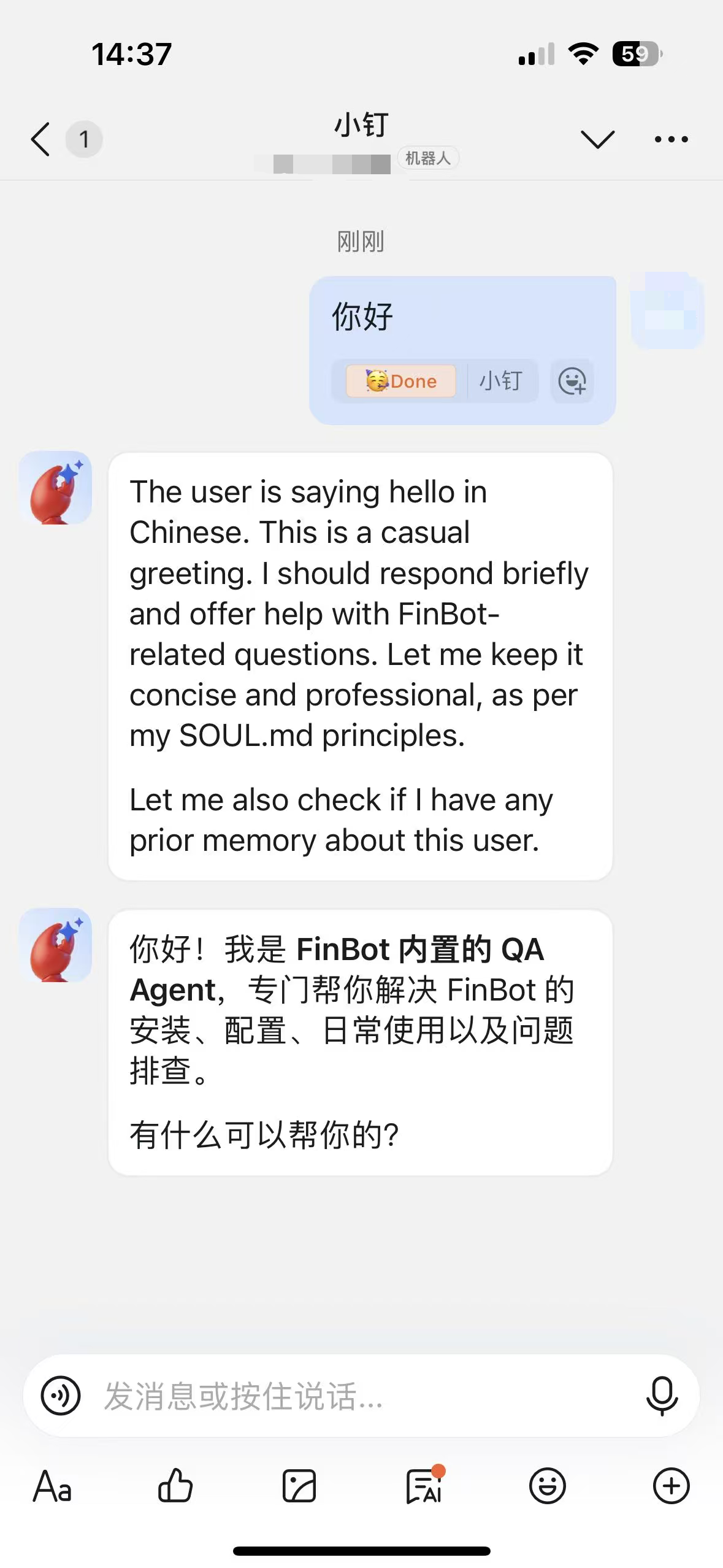
Tip: If you cannot find the agent, please check whether the DingTalk channel has been successfully enabled and saved.
Notes
- Each channel needs to be configured and enabled separately
- Ensure third-party platform account permissions are set correctly
- Regularly check channel connection status to ensure normal message sending and receiving
- Different channels may have different message format limitations